Fields
A record can be described with various fields. This is how kleio lets you capture content systematically. Later you can filter or sort by field content. See: Sort and search
Field content can also be shown or hidden selectively for exports and for display in a space.
You show and hide fields in the display options of each space or in the export options.
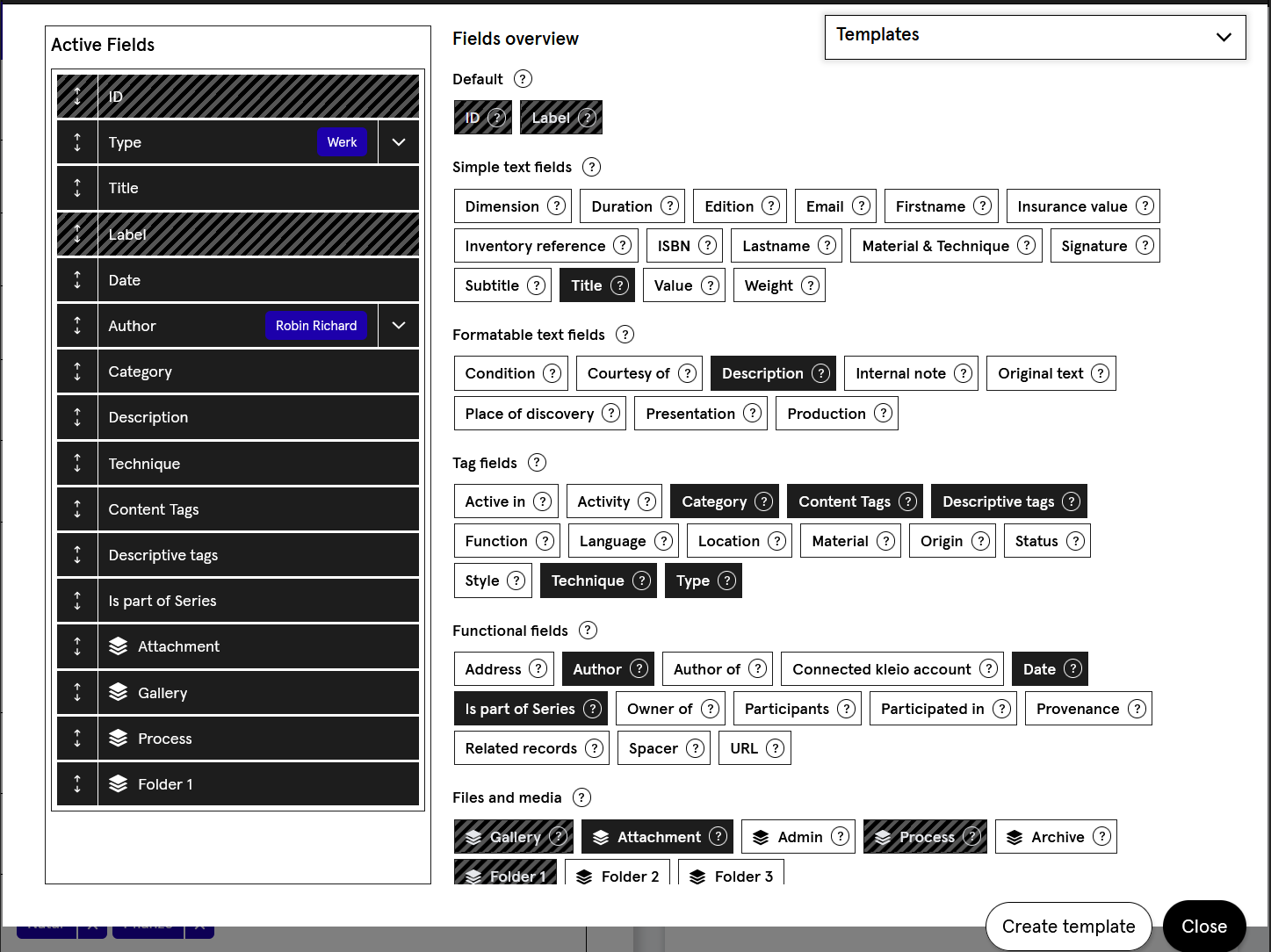
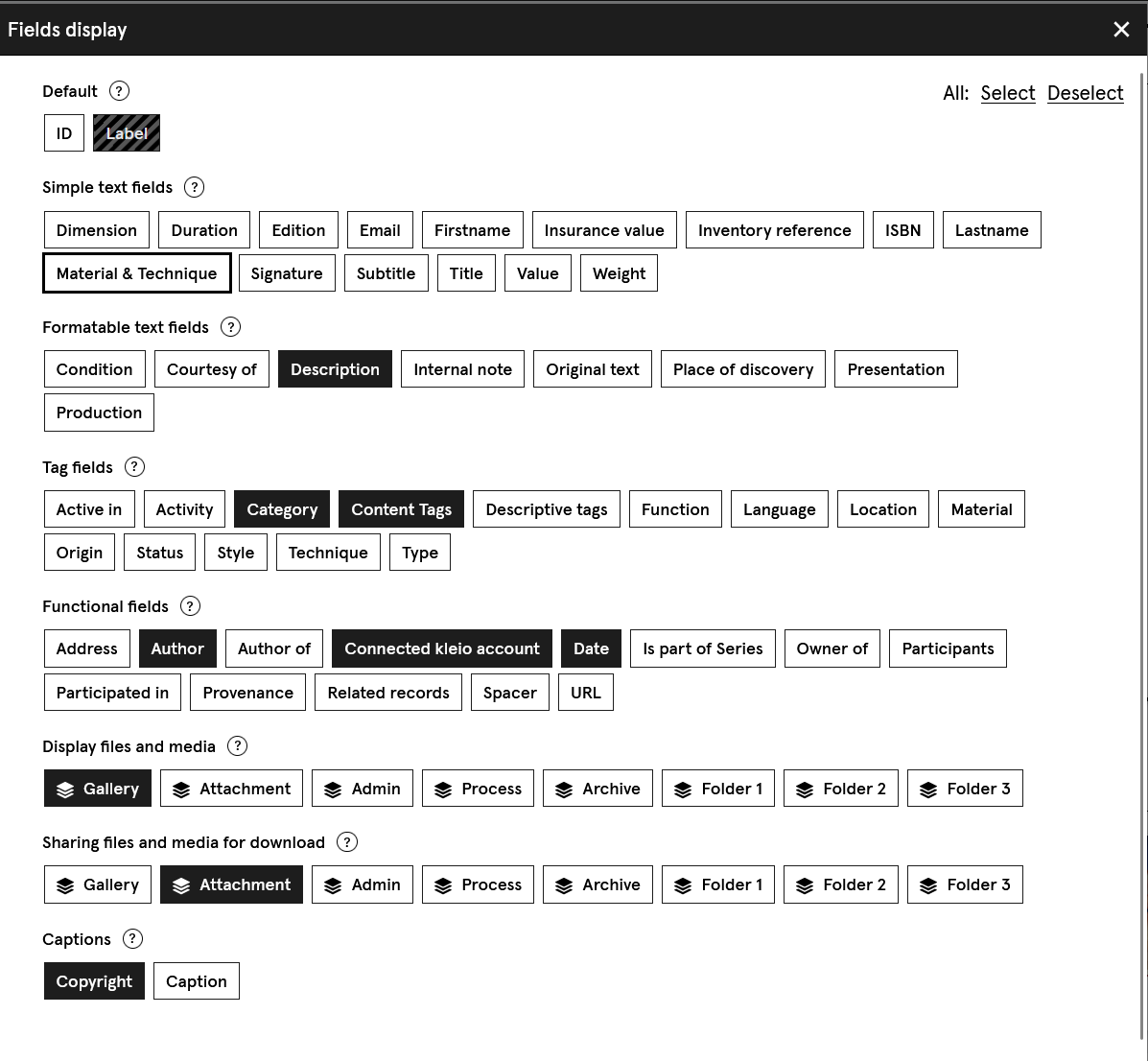
These are the different kinds of kleio fields. The coloured ones have specific features and work differently from simple text fields and files.
They are explained in detail further down this page.

Simple text fields
In these fields you can enter text freely.

Function fields
These fields enable various functions and have specific properties.

Formattable text fields
In these fields you can enter and format text.

Files and media
These fields provide a storage structure for your files and media.
Tag fields
In these fields you can enter suitable tags (keywords), which you can then filter by. You can use both kleio tags and your own tags.

Standard
ID
Label

Captions
Copyright
Caption
Usage
Function fields
The properties of function fields affect how you enter content and how it is displayed.
Here you will find detailed information on each function field and how to fill it in:


Tag fields
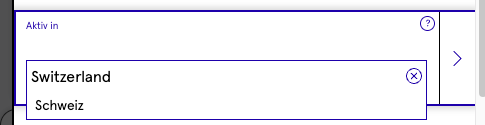
This is a tag field.
You can either type your own terms directly into the field.
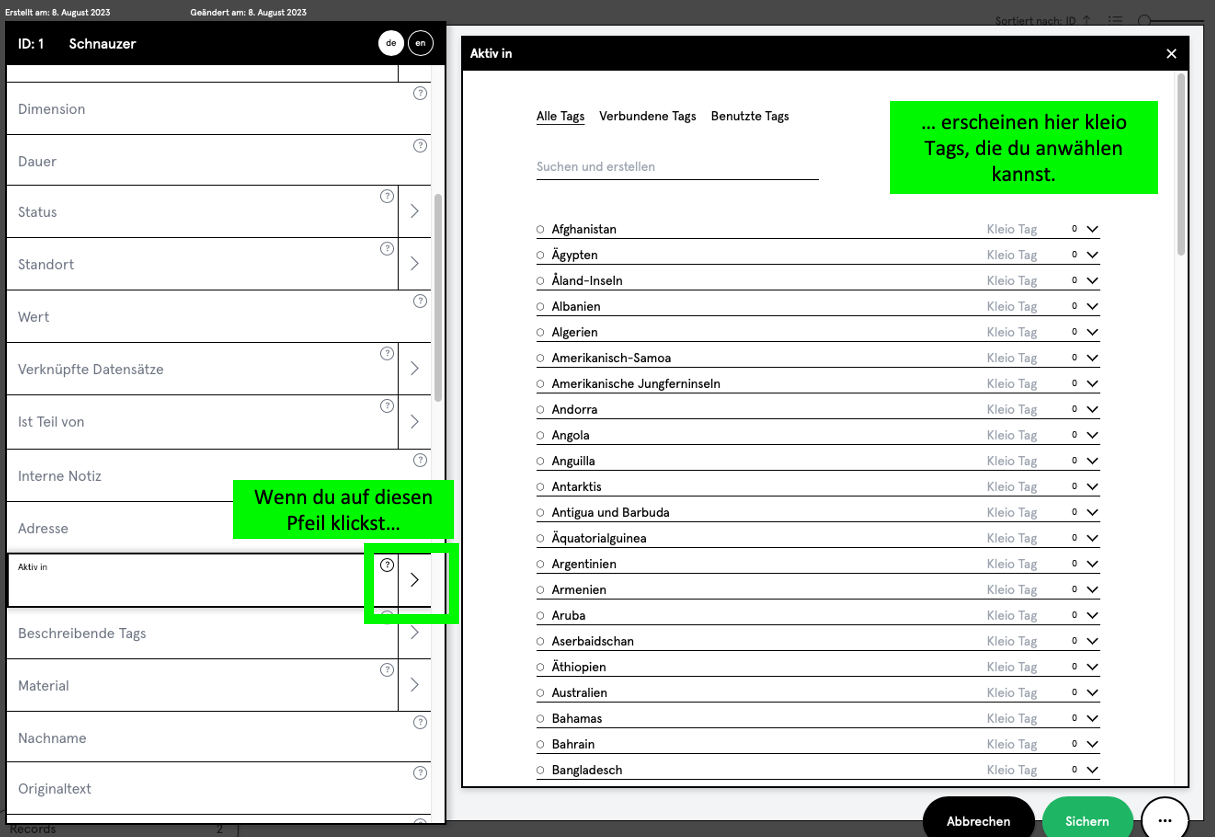
Or click the arrow to the right of the field and choose from the existing kleio tags.
To do this, go to All tags
Creating a new tag There are two ways to create a new tag:
Either type the term into the field and press Enter, or click the arrow on the right, type your new tag under Search and create and then click Create tag.
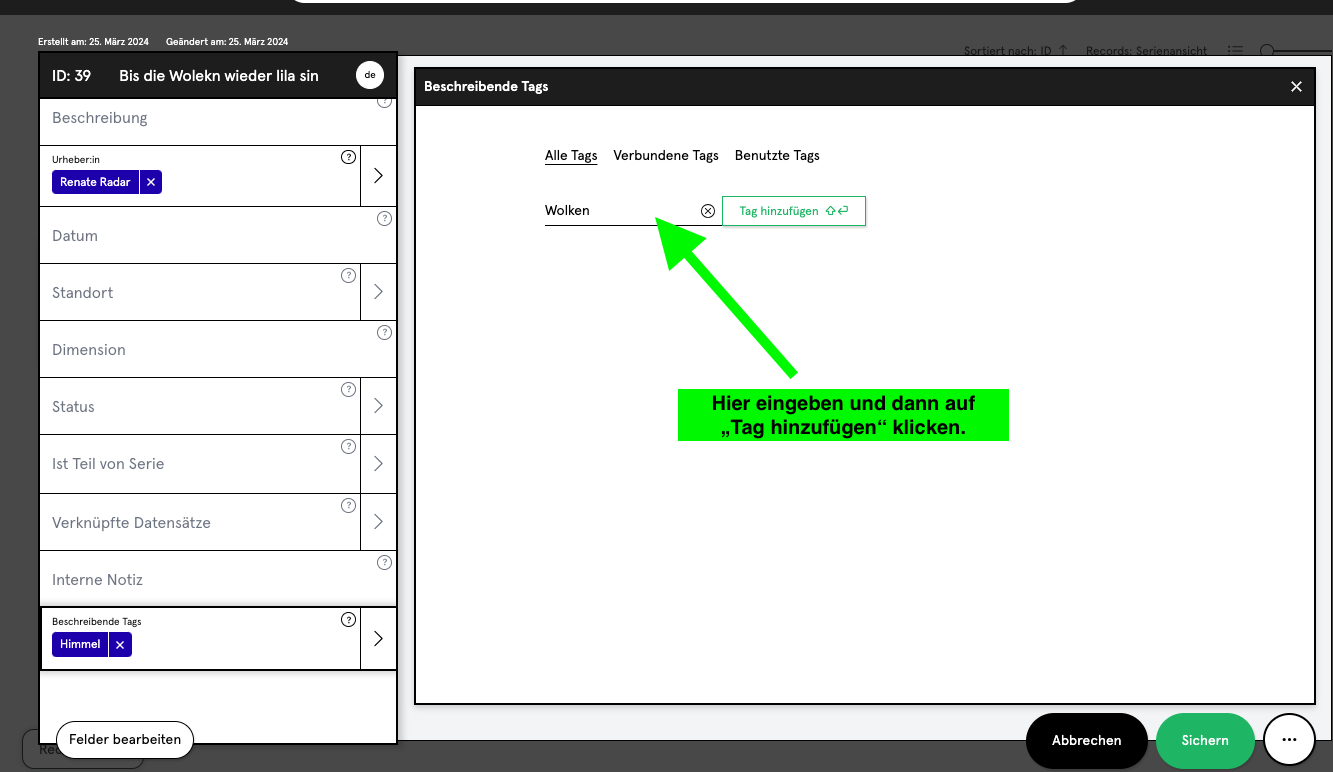
Once you have created a new tag, choose it from the list of all tags for the next record instead of typing it again. Otherwise a new tag is created each time and appears several times when you filter by it.
All fields with a tag function are visible to the kleio team. We translate a selection of tags into German, English and French and mark frequently used terms as «kleio tags». This way other kleio users can also benefit from your tags and use them for their records.
By opening your kleio account and accepting our terms, you agree to this.
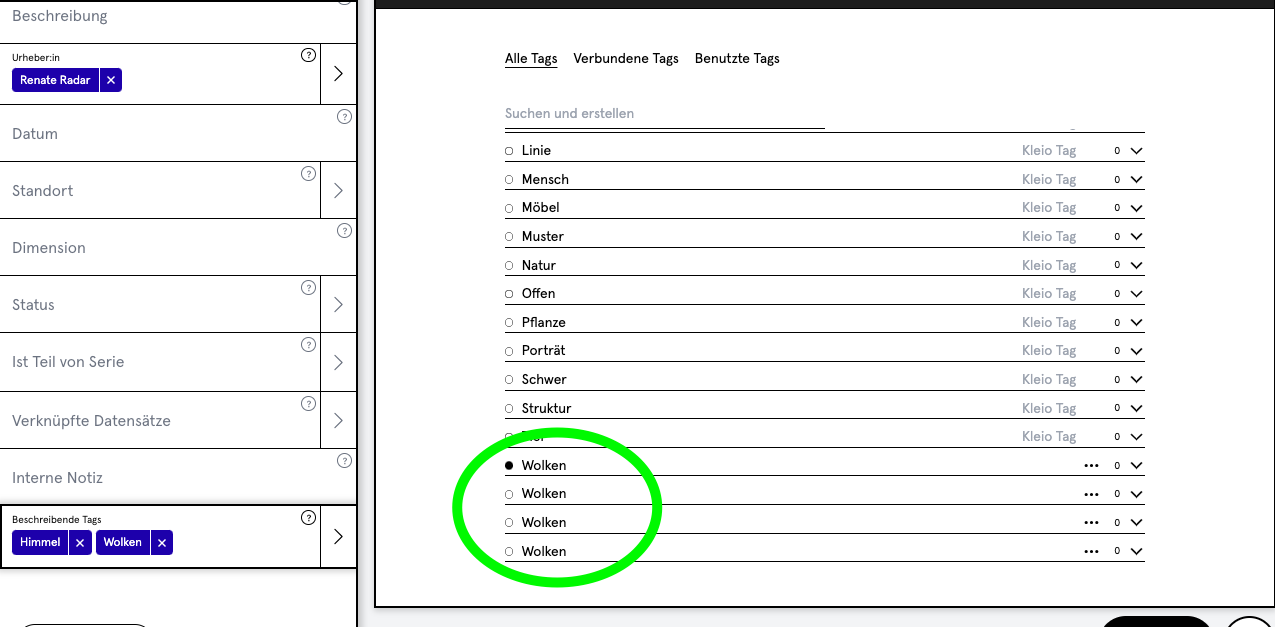
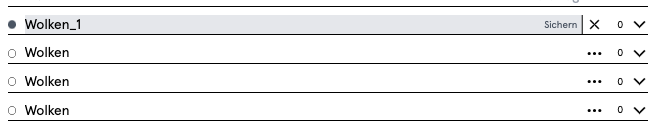
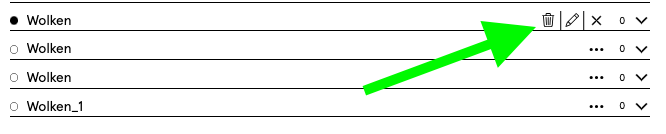
The same tag appears several times - what can I do?
Formattable text fields
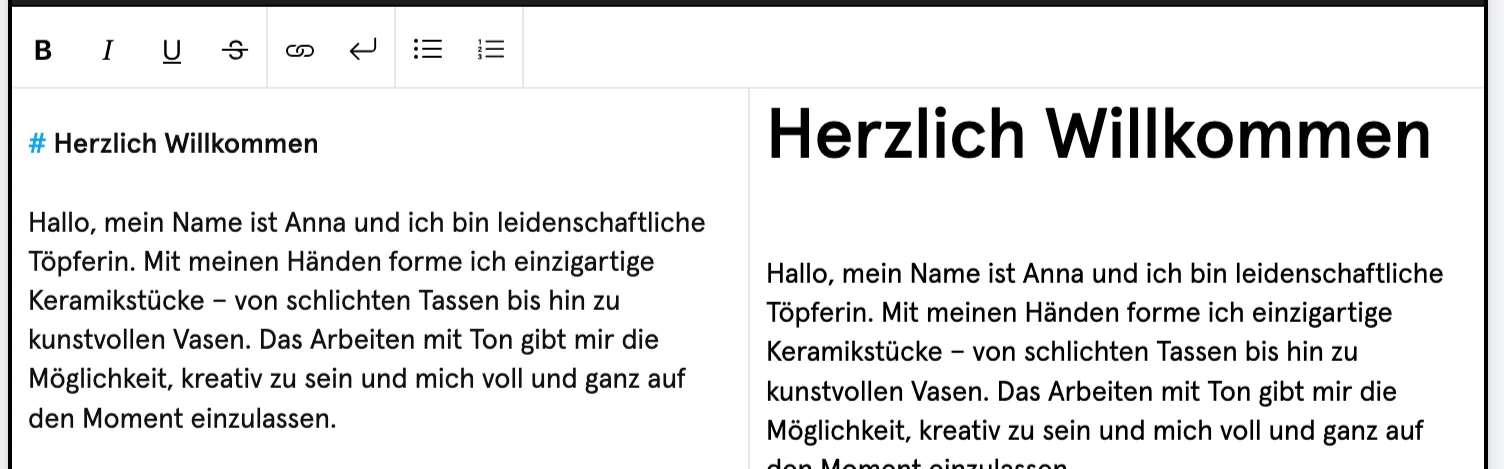
On the left you can enter and format the text.
On the right you see a preview of how the text will be displayed (e.g. on your website).
kleio automatically inserts formatting code characters into the text. They are shown as formatting effects on the right.
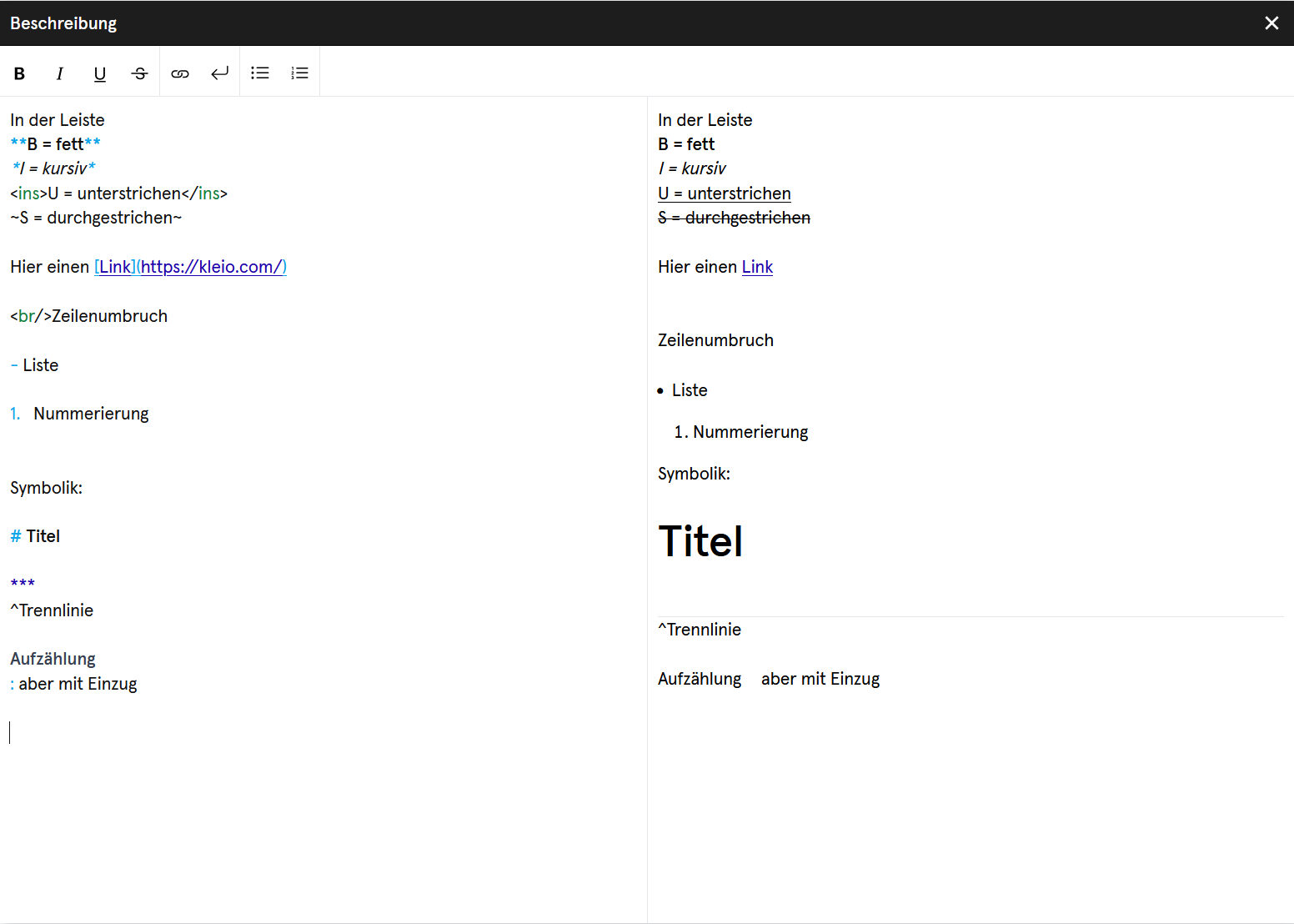
You don't have to work with these code characters, though: you can simply choose the formatting in the menu at the top, as you would in any text document (e.g. in Word).
If something doesn't work: make sure you only select the text, with no spaces before or after it.
Formatting options in the toolbar

B = bold
I = italic
U = underline
S = strikethrough
🔗 = turns a URL into an active link
Line break = adds an empty line
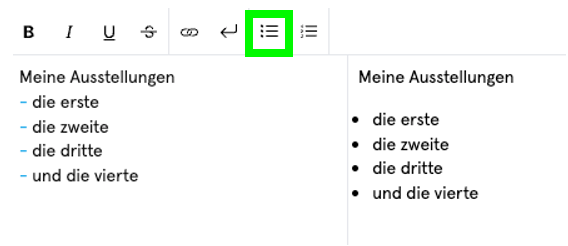
Bullet list
This adds a simple bulleted list. If you have already entered text before it, make sure you add a line break before the list.
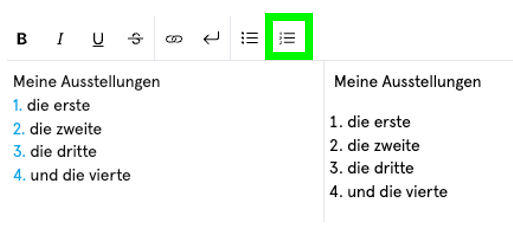
Numbered list
This adds a numbered list. If you have already entered text before it, make sure you add a line break before the list.
Formatting with symbols
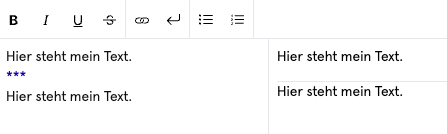
Divider
Three asterisks *** insert a thin divider line.
Heading
A # and a space before a text make it larger and show it as a heading.
Indented list
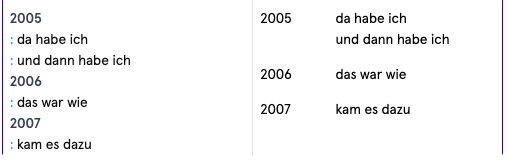
With colons : you can create an indented list. Here too, add a line break first if you have already entered text before the list.
Adding active links in formattable text fields
You can add active links in text-edit fields. This means you can link to external pages, and visitors to your space can reach them with one click.
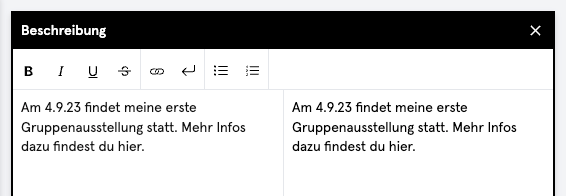
First, enter your text in a text-edit field.
Then select the part of the text that should be clickable as a link - in this example here - and click the link symbol in the formatting toolbar.
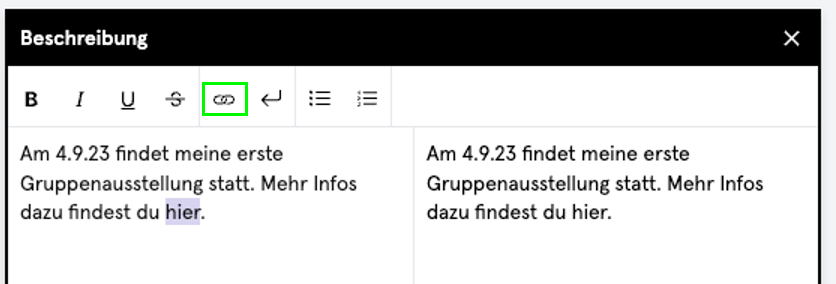
You will then see the following:
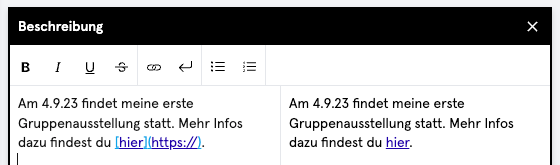
Now paste into the field highlighted in green the link that should open when someone clicks here.
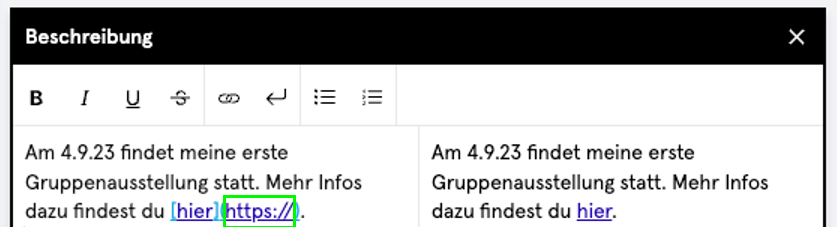
The right field shows how your text will look on the website; the left shows which link has been added. Now save and test on your website whether the link works. You can add as many links as you like.
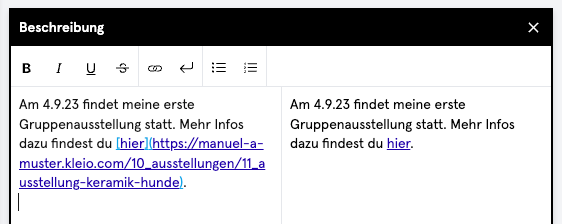
Opening a link in a new tab
If you want your link to open in a new tab, paste in this:
<a href="kleio.com" target="_blank">kleio</a>In this example, the word kleio is linked and opens the kleio.com website in a new tab.
→ Now delete kleio.com and paste in your link
→ Delete kleio and type the term that should be linked.