Linked records
In the Linked records field you can link other records to this record. For example, you can link all works of an exhibition to the exhibition's record, or link press releases to the related work or performance.
Display on the website
A linked record is only shown on your website if it is published itself.
So it isn't enough for your exhibition to be published, for example: the linked work or image must be published too, otherwise only its title is shown.
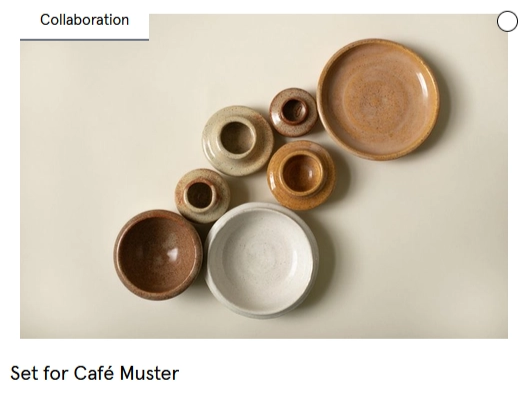
You can see a record's publishing status from the label at the top left:
Blue = published
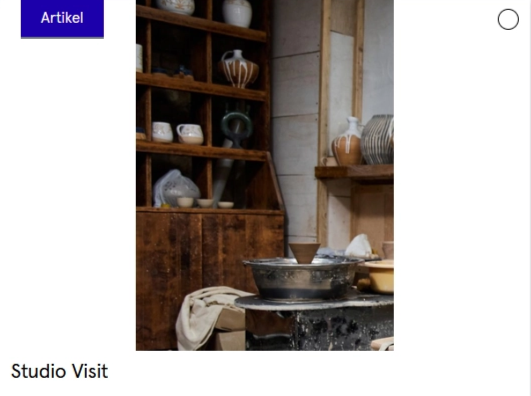
White = not published
There are two ways to choose records to link:
1 - Search by label
To link a record, type its name (i.e. its label) directly into the field. A drop-down menu opens in which the record should appear.
Type something into the field to open the drop-down menu. Here the word “dog” was typed to search for a record with this word in its name.
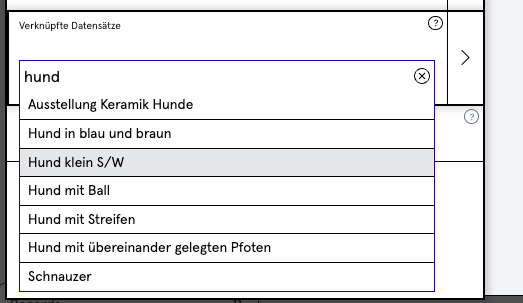
When you click a record, it is linked automatically.
This is what it looks like when a record has been linked: the image is shown on the right and the record name, highlighted in blue, on the left.
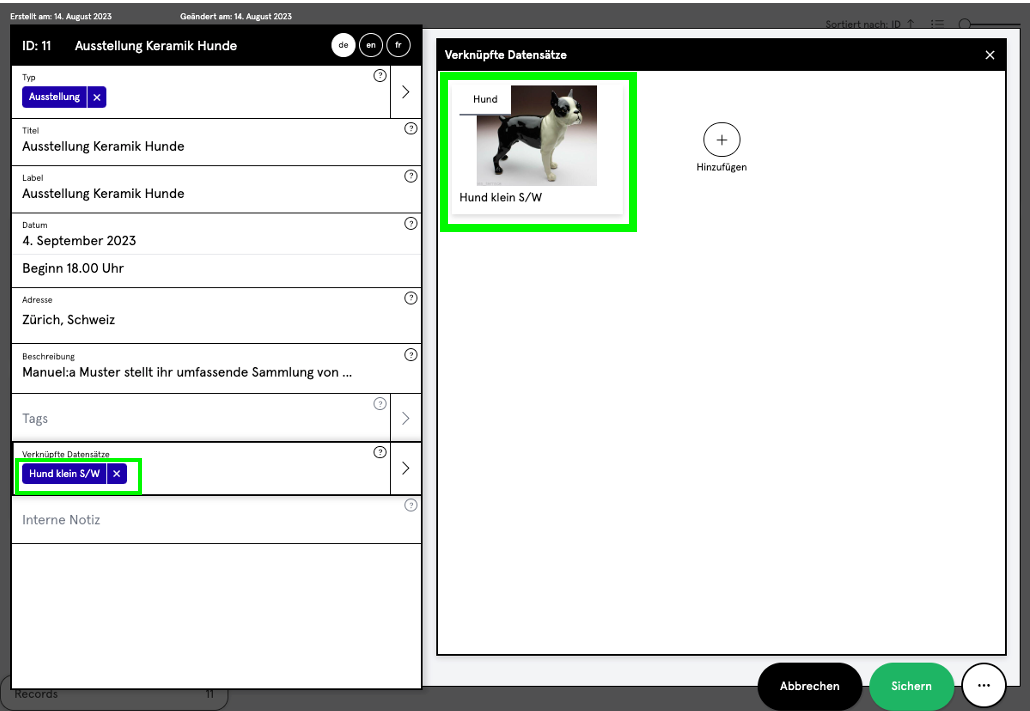
2 - Browse all records
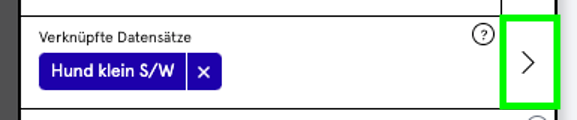
You can also choose records to link by clicking the arrow on the right.
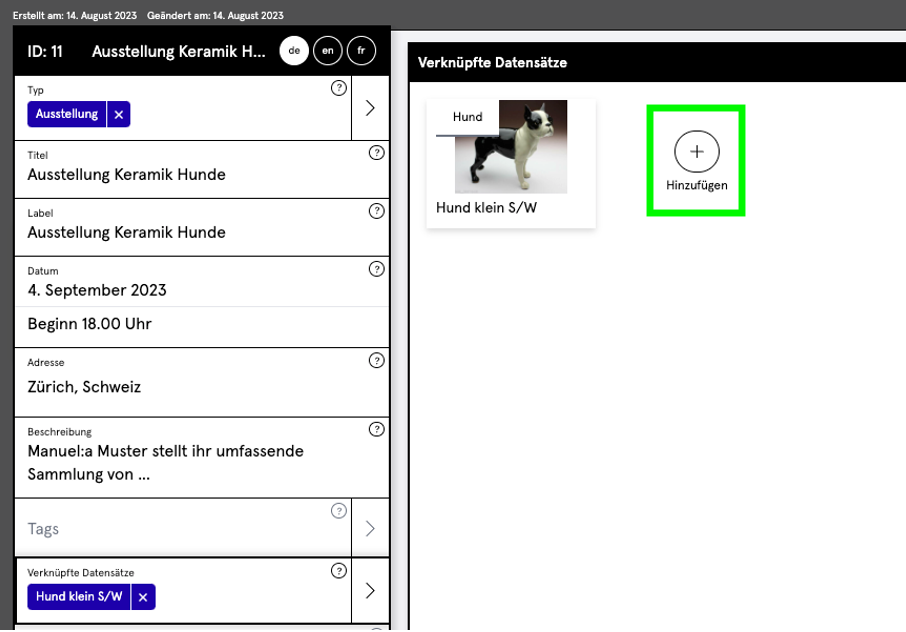
Then click Add
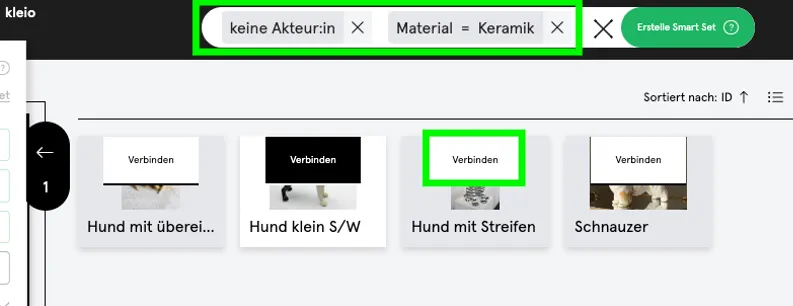
You now see an overview of all your records (except actor records)
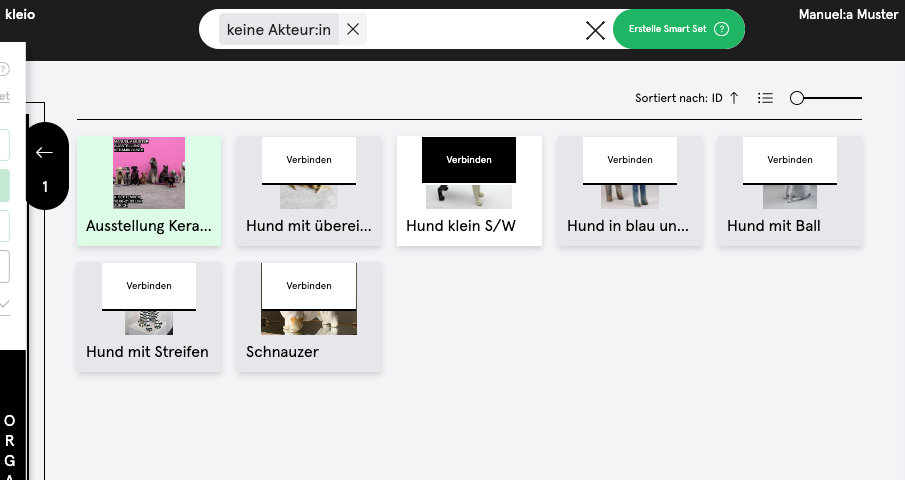
Click Connect to link records.
In this view you can also use the search to find specific records.
In this example, I want to find all dog sculptures made of ceramics. So I use the search and then link all records with the property Material = Ceramics. More about searching your records here.