Sort and search
Sorting
To get a better overview of your records, you can set the sorting criterion of each Set or Smart Set as you like.
In the left, internal area you can create Sets and Smart Sets and set a sorting criterion. In the right, public area you can only create Sets.
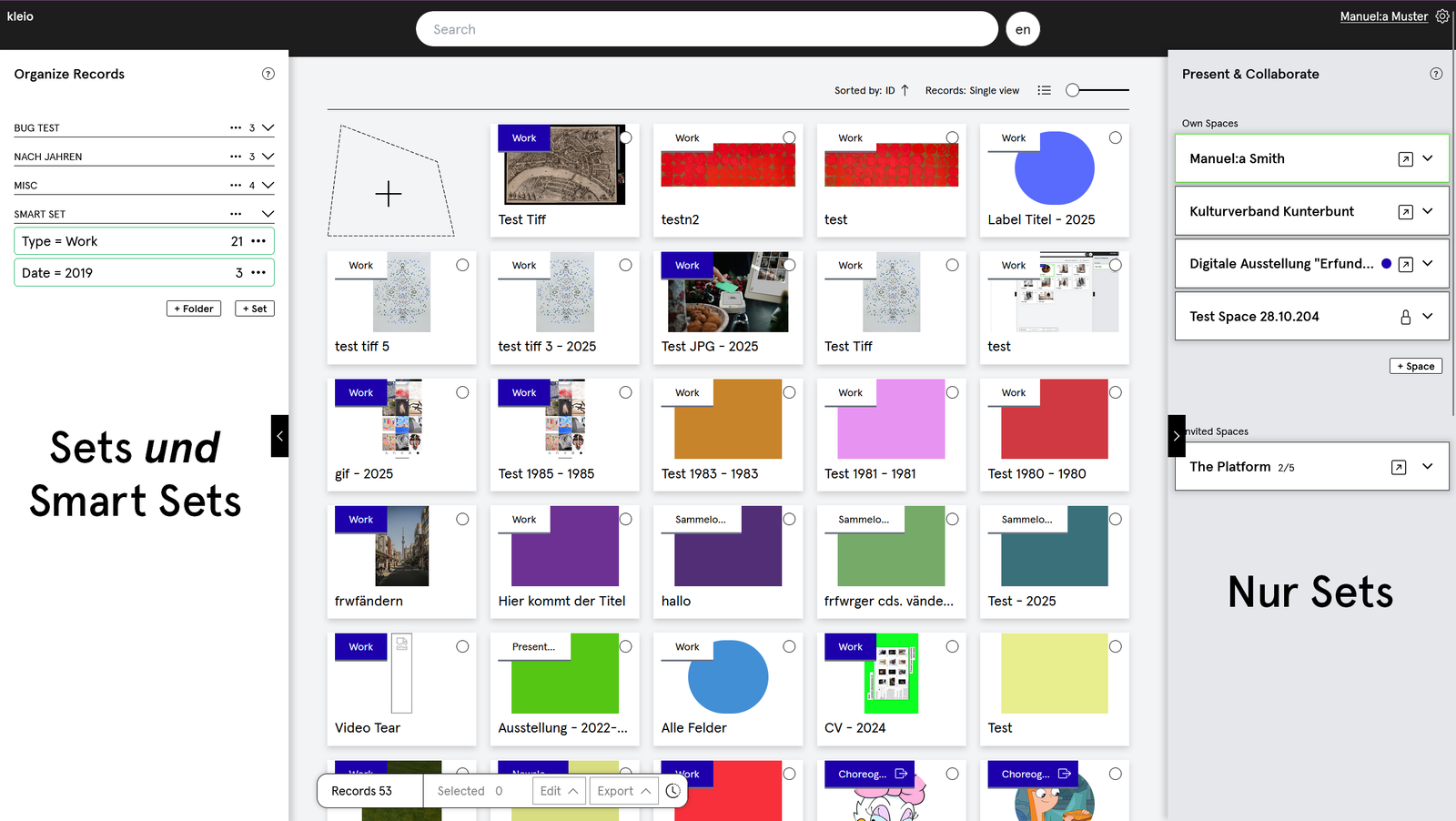
Sorting works differently in a normal Set and in a Smart Set.
How to tell them apart:
“normal” Sets have a black border, Smart Sets a green one
Sorting in a Set
The top bar shows which criterion a Set is sorted by. For “normal” Sets it always says Custom.
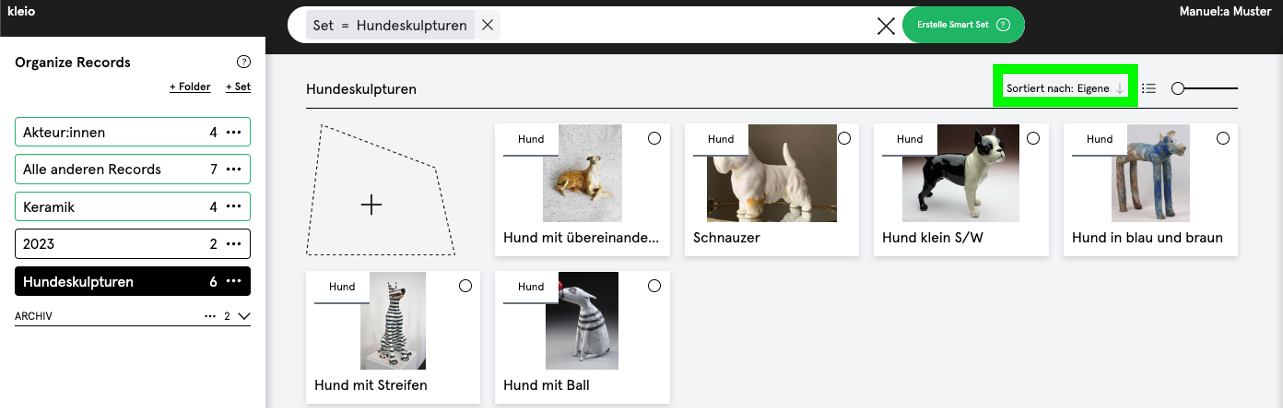
By default, records are shown in the order you added them to the Set.
- Create a Set or select one
- Drag and drop the records you want into it
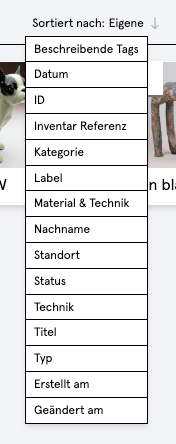
- choose your sorting criterion in the “Sorted by:” drop-down
- If you have grouped records into a series, choose whether they are shown individually or as a series
- use the arrow next to the sorting criterion to choose ascending or descending order
- save your sorting criterion

Your sorting is only kept if you save it.
The Sorted by: selection now shows Custom again, and you can fine-tune the order with drag and drop.
Note: Sorting and saving the sort order are only possible for Sets with at most 1000 records.
Sorting in a Smart Set
Sorting in a Smart Set works very similarly. However, it has to be set when you create the Smart Set and can't be changed afterwards.
- Run a search that shows the records you want.
- Set a sorting criterion, e.g.
Date. - Choose whether the records are shown in ascending or descending order
- If you have grouped records into a series, choose whether they are shown individually or as a series.
- Save your Smart Set and give it a name
By default, a Smart Set is sorted by ID number.
New records you create are added to a Smart Set automatically and placed according to its sorting criterion.
In a Smart Set, records can't be moved with drag and drop.
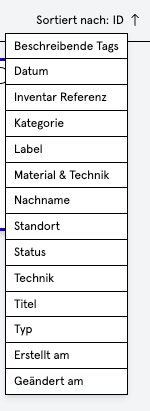
The sorting of an existing Smart Set can't be changed. You can, however, select the existing Smart Set, adjust the sorting, save it as a new Smart Set and delete the old one.
Example: sorting records by date
Searching
To search your records and filter by tags, use the search bar at the top of your kleio.

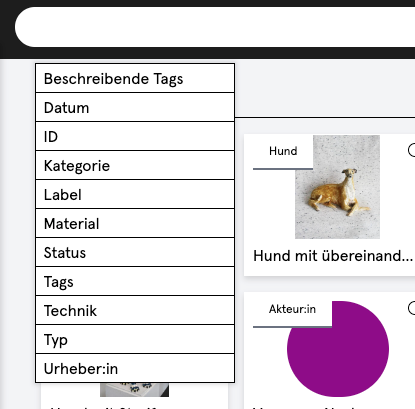
When you click into the search bar, a selection of fields you can filter by appears automatically.
Filtering means giving kleio an instruction: show me all records with property XY.
These fields appear when you click into the search bar. You can also filter by other fields: just type them into the search bar.
Searching by one criterion
For example, if you want kleio to show you all records with the material ceramics, filter like this:
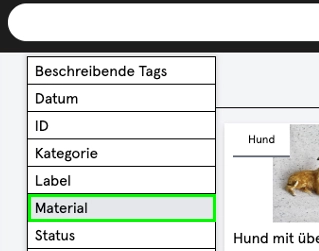
- Click the Material field
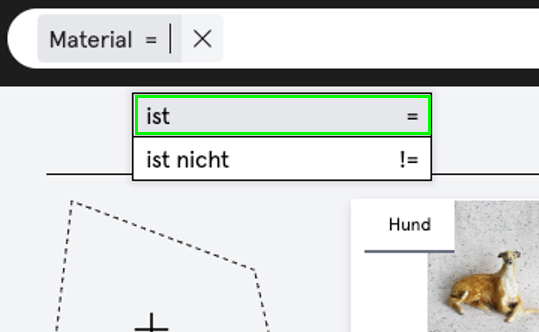
- Choose
is
If you want kleio to show you all records that do not have property XY, choose is not.
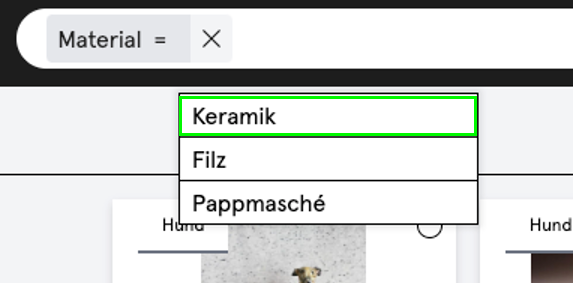
- Choose
Ceramics
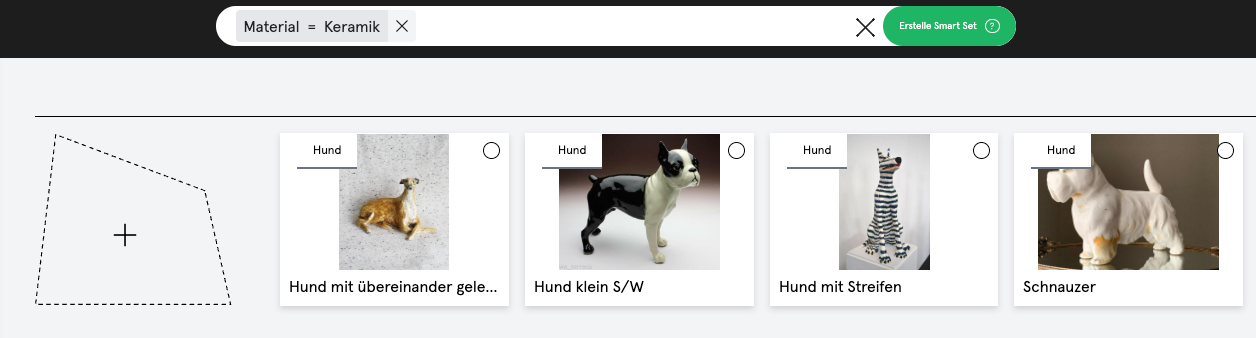
- Click anywhere outside the search bar or press Enter. The middle of kleio now shows all records where you entered
Material=Ceramics.
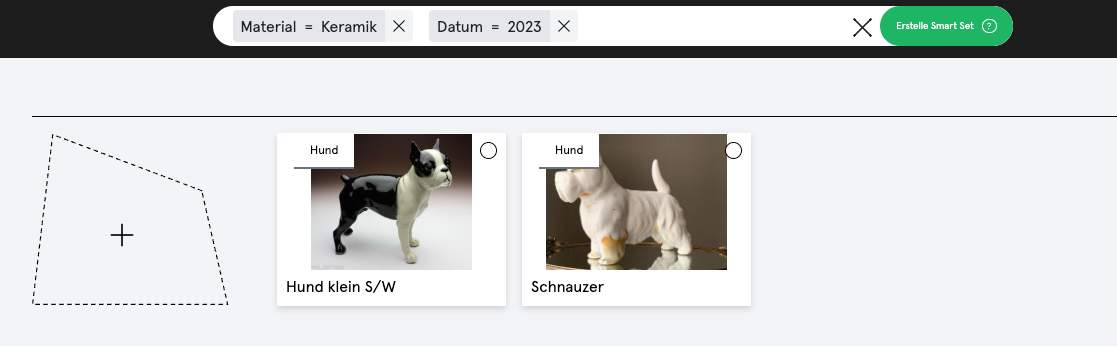
You can do this with all kinds of fields and properties. You can also search by several properties.
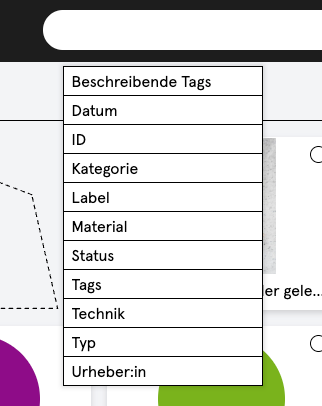
The fields shown at first are only a selection.
You can, however, search by almost all fields in the search bar (we are working on making all fields searchable soon). Just type directly into the search bar.
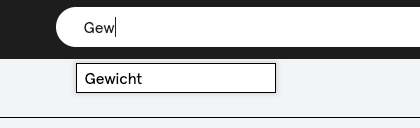
For example, if you want to filter by weight, type the word Weight into the search bar and it will be suggested.
Searching for empty fields

You can also search your kleio for fields that have no content. If the field is empty, choose empty:
Refining searches in tag fields with AND / OR
You can refine a search within a tag field and actor records with AND / OR. More about fields: Fields
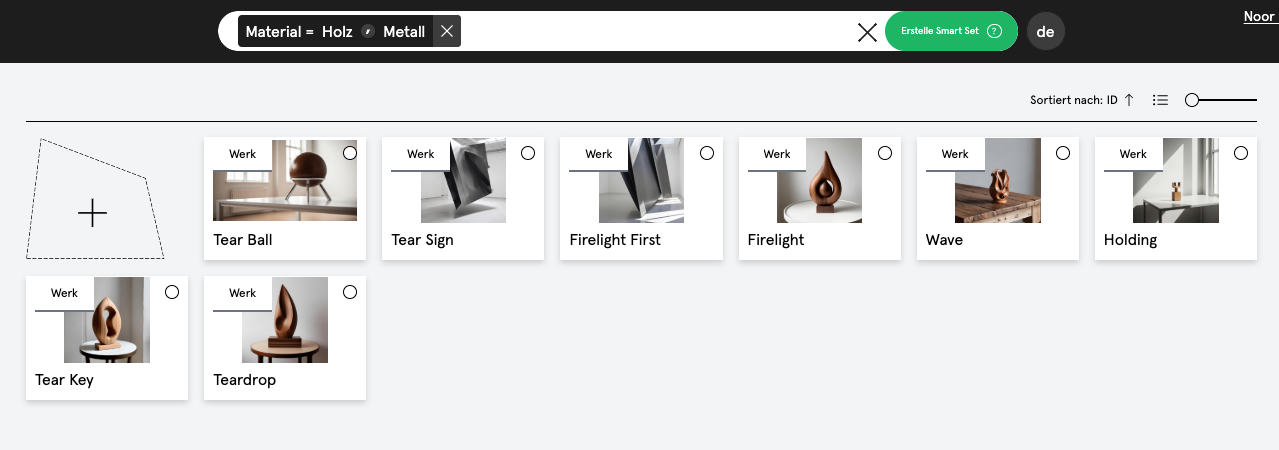
- Enter a search
Enter a search in a tag field, e.g.
Material = Wood, Metal. By default, all entries are shown that contain eitherWoodor (OR)Metalin the “Material” field.
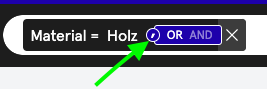
- Switch the search to AND To show only entries that contain both terms, click the comma in the search and choose
AND.
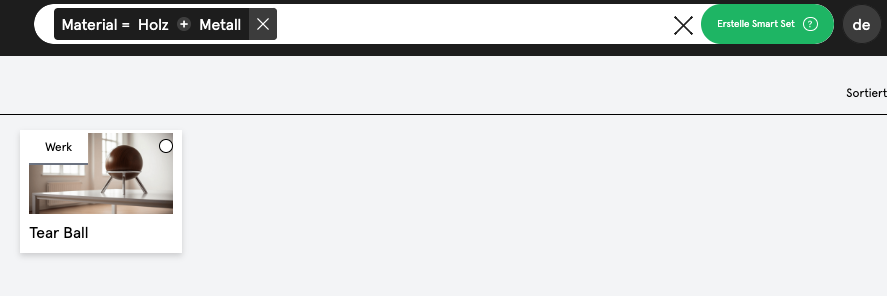
- Now only entries are shown that contain both
WoodandMetalin the “Material” field.
Refining searches with quotation marks
You can refine your search by using quotation marks “”.
Example:
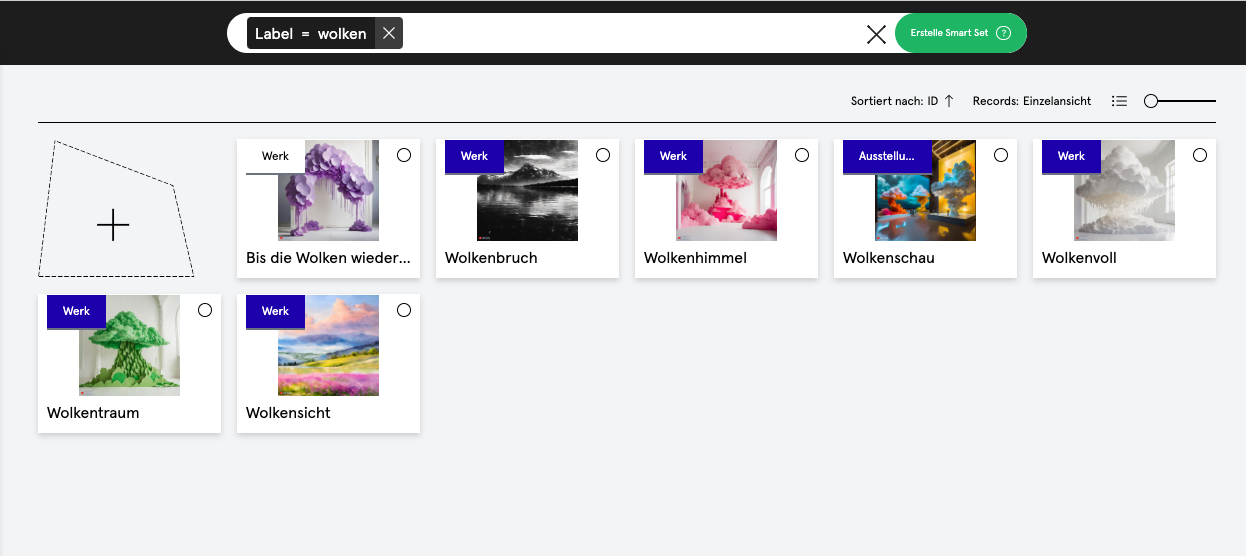
Without quotation marks, all records are shown that contain the word clouds in the Label field. This can include word combinations such as “cloudburst”:
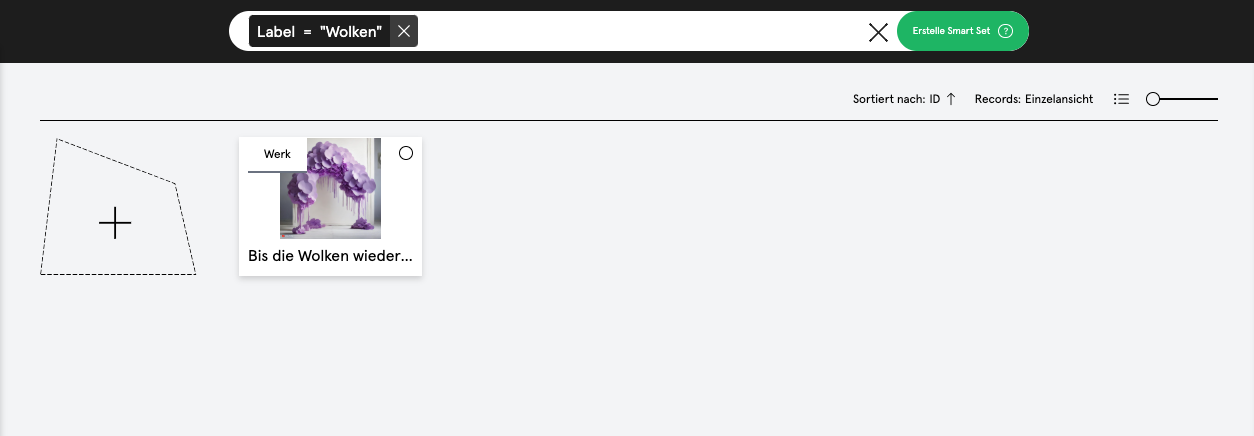
With quotation marks around the word “clouds”, only records are shown where the word “clouds” stands on its own in the Label field:
Editing a search
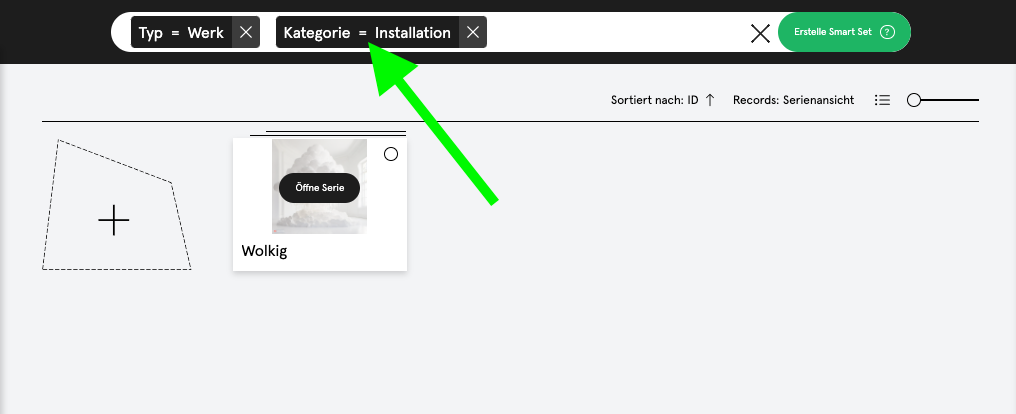
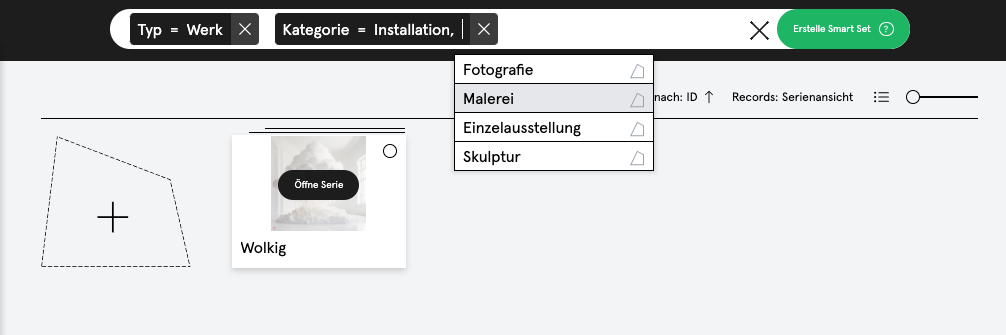
To edit a search, just click into it and add or remove tags.
Full-text search
You can also search freely for words. For example, if you simply type the word ceramics, kleio shows all records where the word ceramics appears in any field.
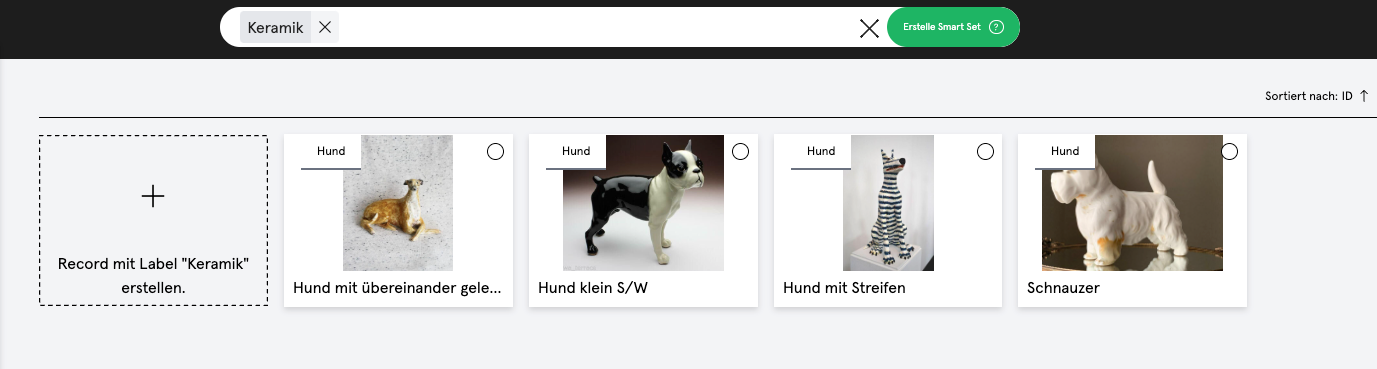
The search only works if you have actually used that field in your records. For example, if you search for “Technique is painting” but the Technique field is hidden in your records, or shown but empty, the search won't find anything.
Which fields does the full-text search cover?
Advanced full-text search
The advanced full-text search lets you refine your search with special syntax commands. Choose Advanced search in the search field – or just type 'Adv' to find it quickly.
Use these characters to make your search more specific:
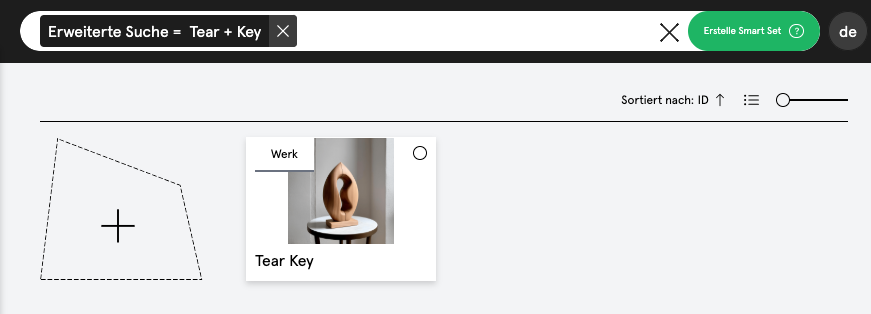
+ means AND → Both terms must appear.
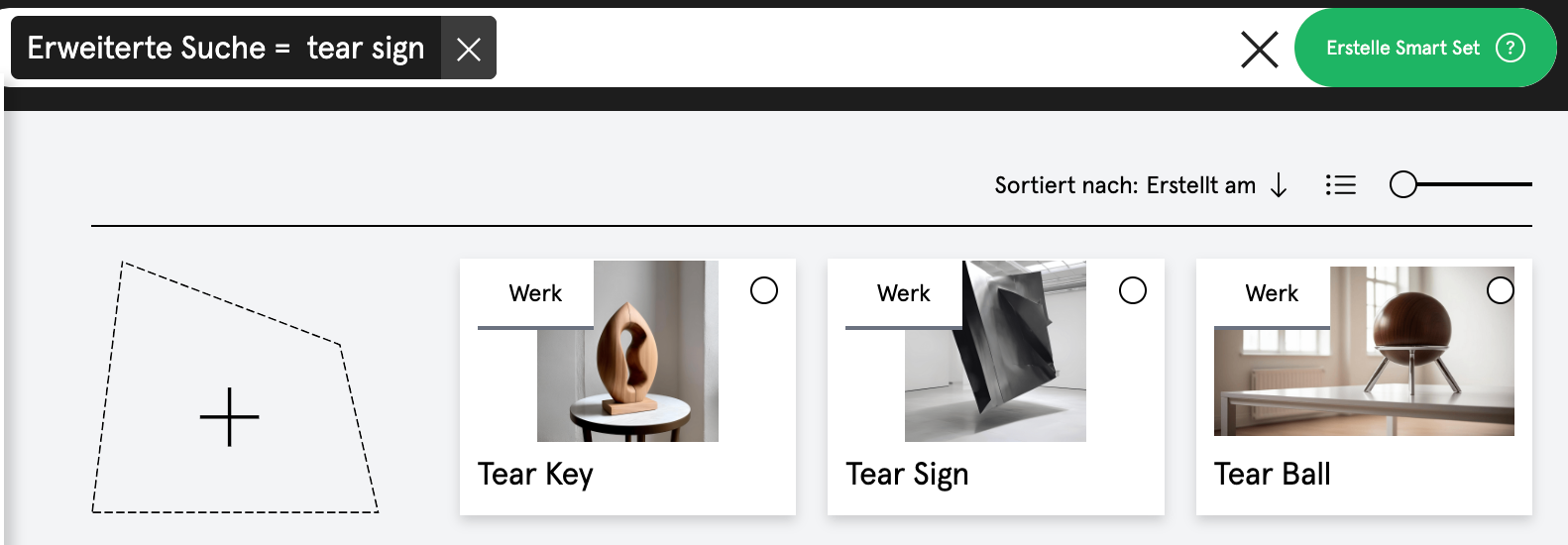
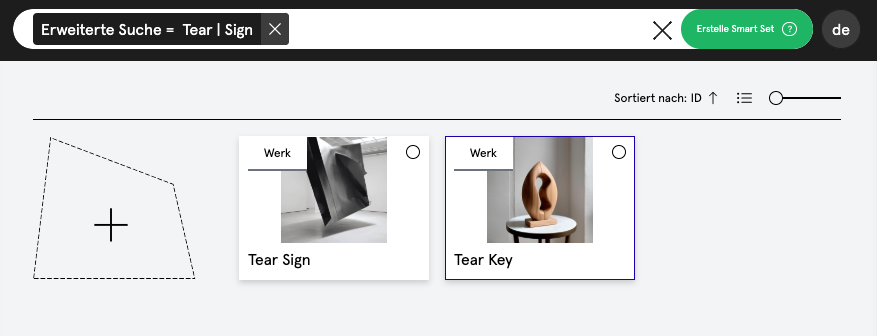
| or a space means OR → One of the terms must appear. By default, kleio treats a space as “OR”.
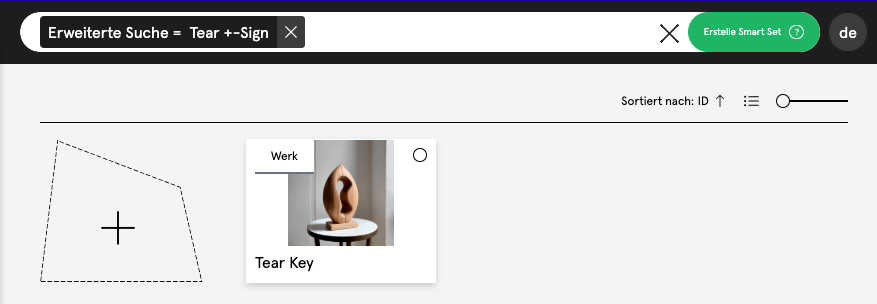
+- means NOT → This word is excluded.
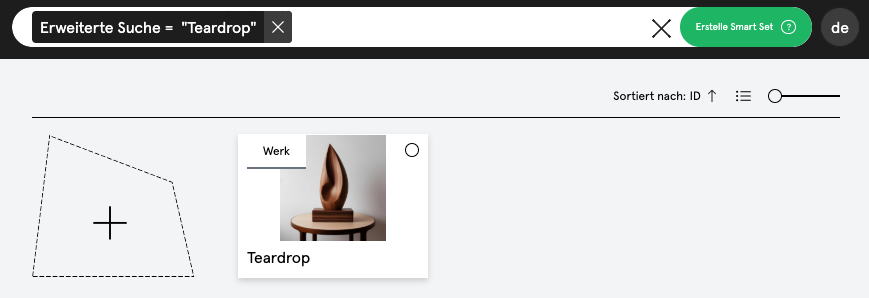
Quotation marks " " for an exact phrase → The words must appear in exactly this order.
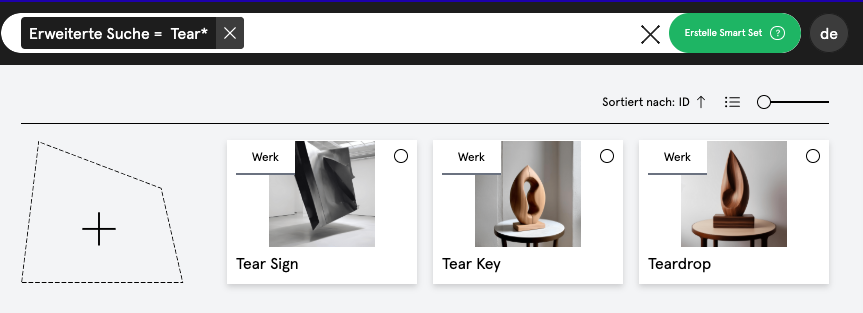
* at the end of a word to extend it → Finds all words that start with this term.
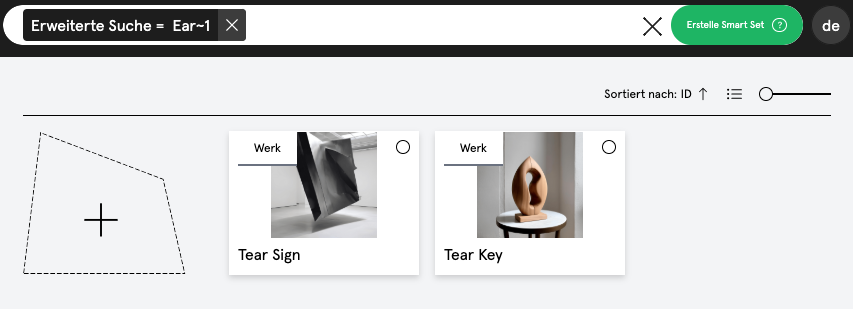
~N after a word for a fuzzy search → Allows small typos. “N” stands for a number (e.g. “house~1” means it may differ by 1 letter, so it also finds “mouse”).
You can find more syntax commands here.
Searching for records in a time span
You can search for records within a specific period by entering a start date and an end date.
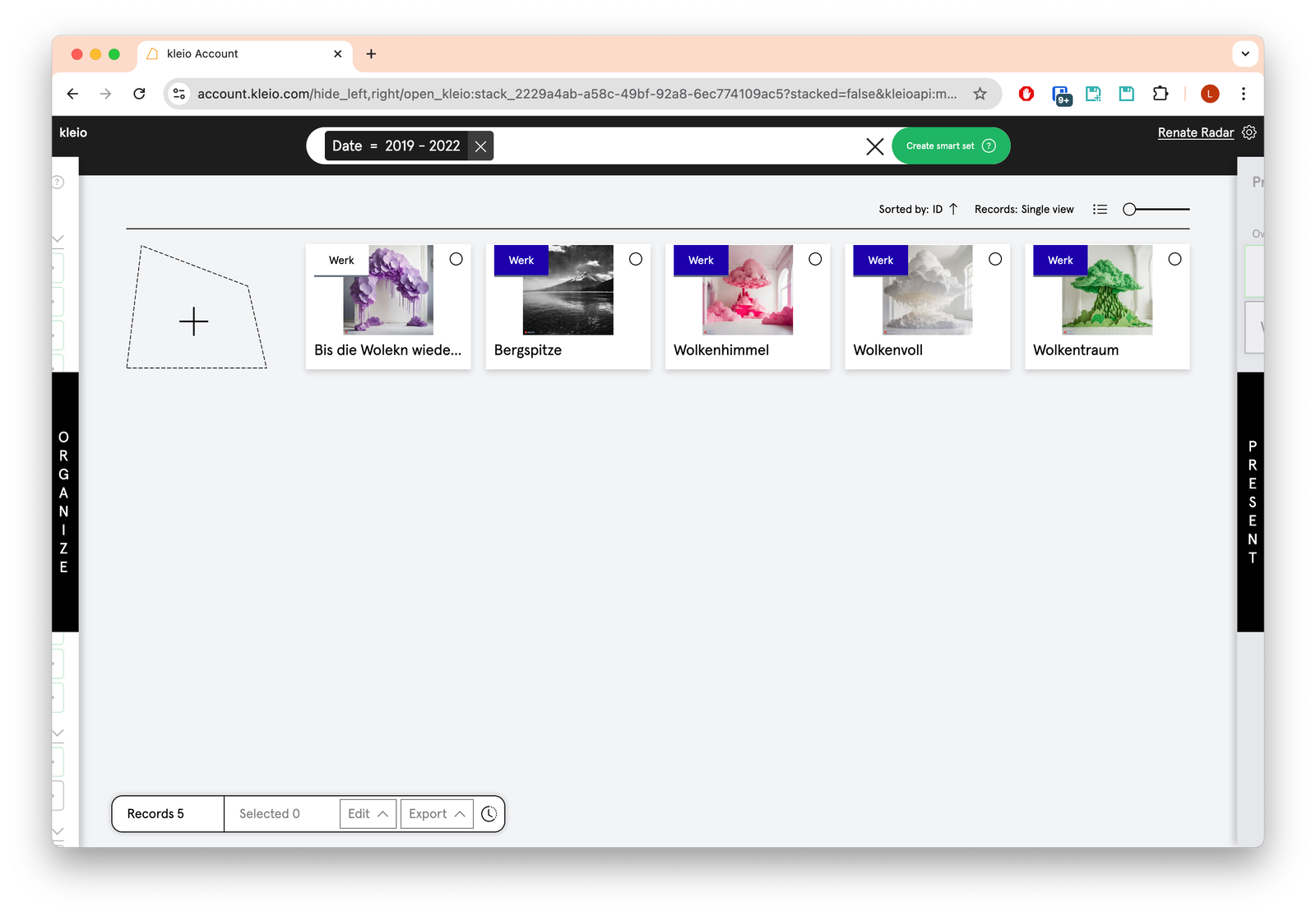
Say you want to find all records whose Date field contains a date between 2019 and 2022.
Here's how:
- Open the search field.
- Choose the Date field.
- Enter the time span in the format "2019/2022".
kleio now shows all records within this period.

The search results are shown:
Searching by dimension
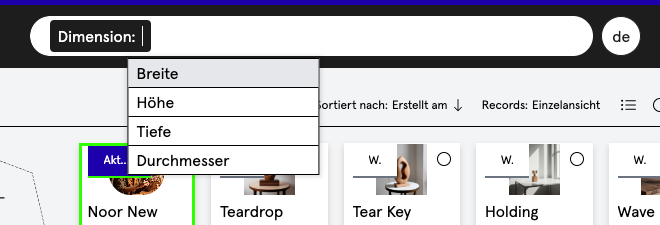
Want to search for specific formats? In kleio you can filter by width, height, depth and diameter.
Choose Dimension and then the format you want.
Enter an exact number to search for a specific size.
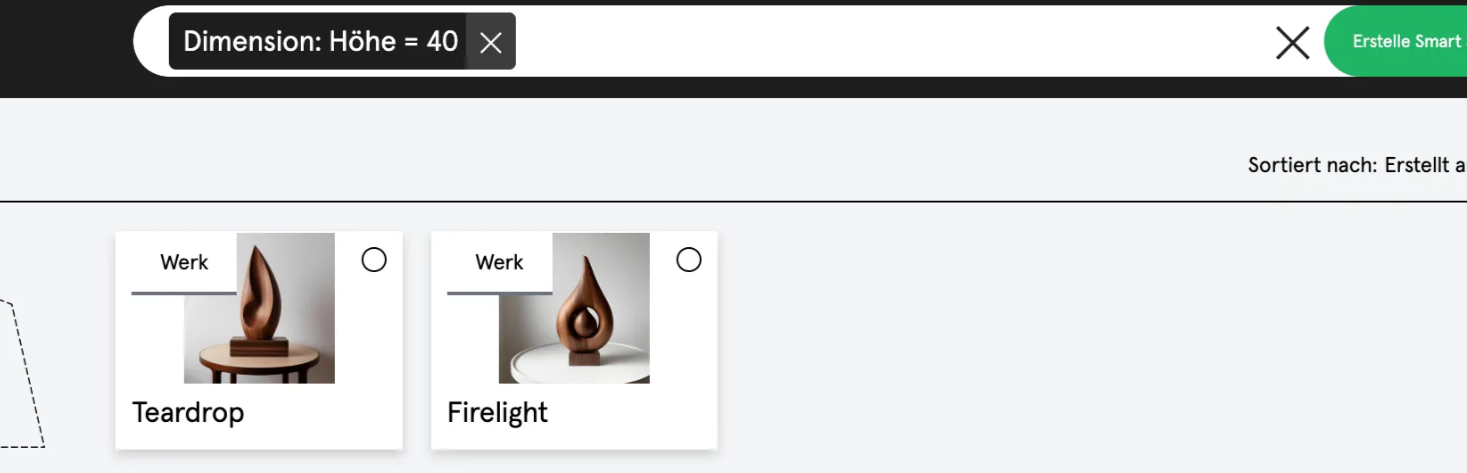
The search results now only show records whose format field contains that number.
Searching by provenance, owner & date
To search for records in which a specific person or institution is listed as a provenance owner, do the following:
- First choose the category
Provenance, then the fieldOwner, and then the person or institution you want. - You now see all records whose provenance history lists this person or institution as owner.
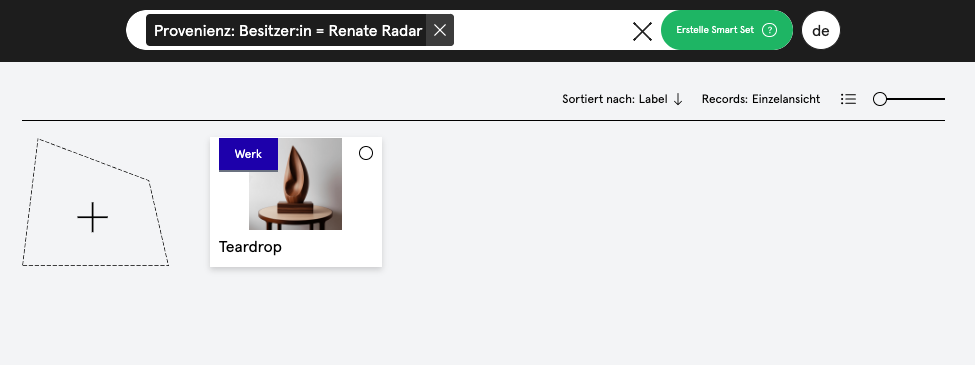
You can use the same steps to search for a provenance date.