Work Archive
A work archive is a collection of data, media and information about a project that is not only stored but actively worked with.
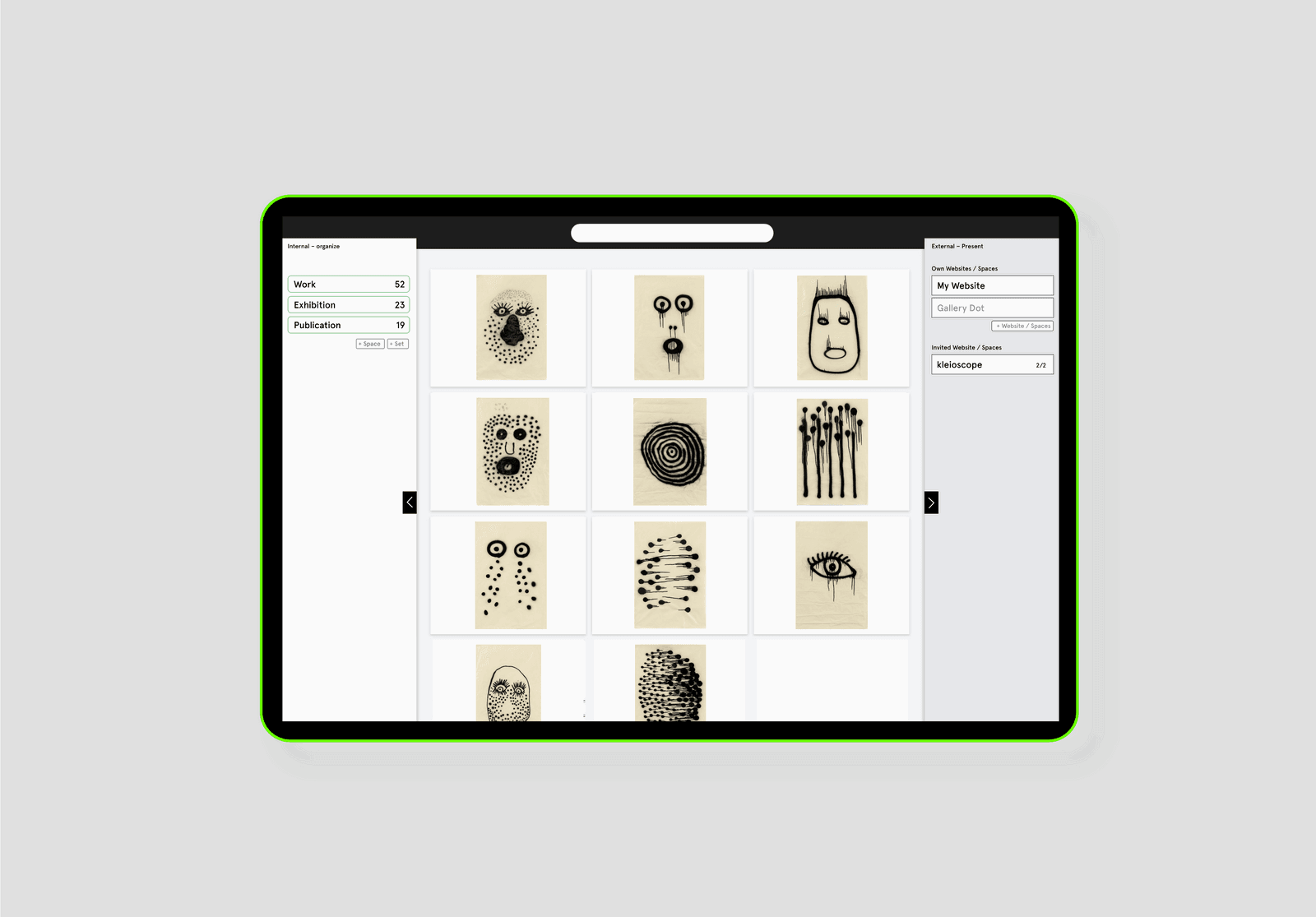
Content can be added, changed or reorganised at any time. This makes the archive a practical tool for documentation, organisation, research or presentation.
The kleio work archive lets you capture a project once and then use it in a thousand targeted ways at the push of a button.
It supports creative, academic or organisational processes by remaining accessible and usable at all times.
Content and media
Importing files and media
Before you can upload files and media, you need a record / entry. To create a record, click this plus in the workspace.
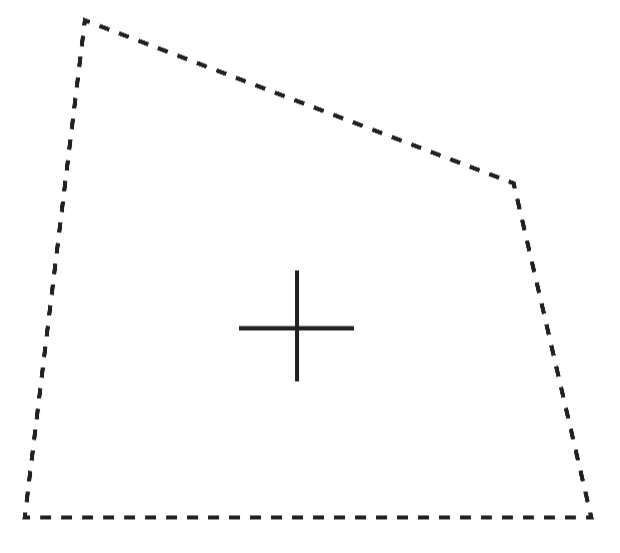
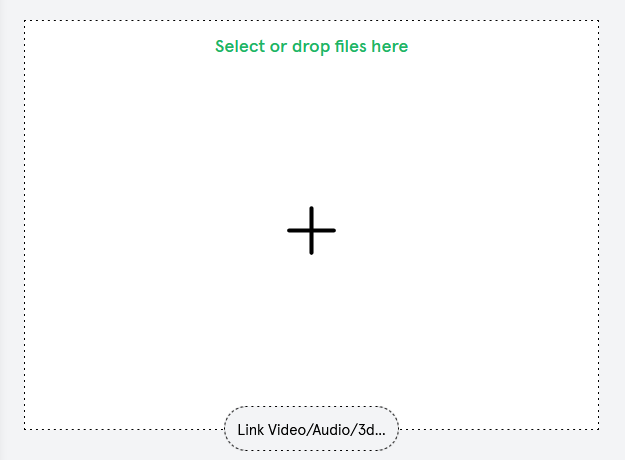
The record window then shows this field, where you can drag and drop your files, or click the plus symbol to open your file explorer and look for them.
Recommended image formats
In kleio you can upload all common image formats. However, not all formats can be shown directly on the website. Files such as Photoshop files (PSD) or RAW images first need to be converted into a suitable format before they can be shown on the web.
These formats are supported on the website:
- JPG / JPEG
- PNG
- BMP
- TIFF
Linking video or audio files
You can upload and store video and audio files directly on kleio, but they can't be played there. You upload them the same way as images.
For you and visitors to your website to watch your videos and listen to your audio files, you first need to upload them to a platform such as YouTube, Vimeo or SoundCloud.
Then add the link from that platform to kleio, and your videos and audio can be played - both in your account and on your website.
To link a video or audio file in your kleio, click the field below the plus.
A new field appears. Enter the link to your file here.
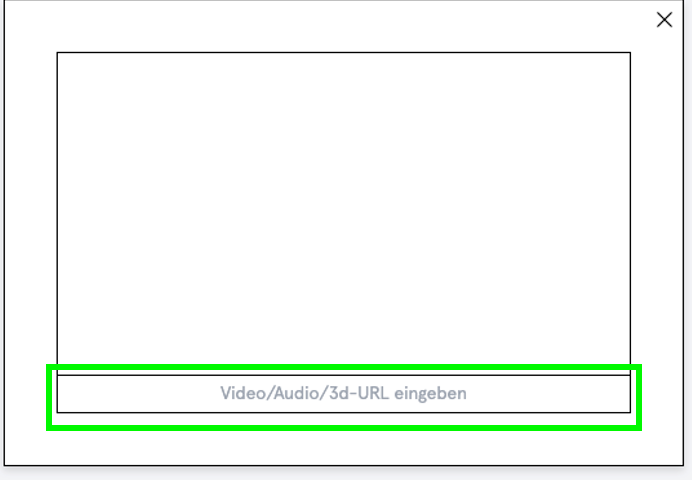
As soon as you have entered the link, the file is shown. Click Link at the bottom right to save the file.
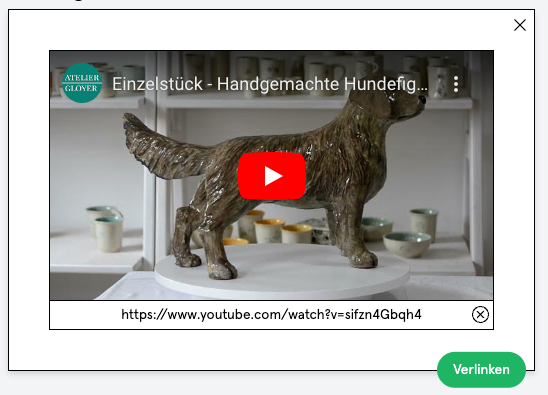
For linked files, kleio often can't generate a preview image automatically. A YouTube video is then shown like this, for example. If needed, you can upload your own preview image.
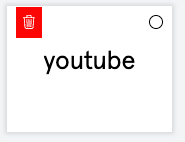
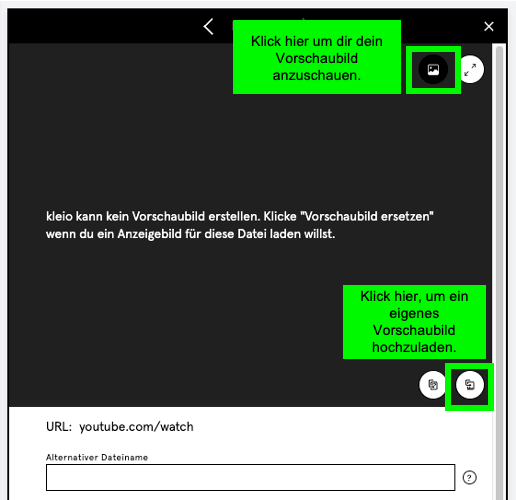
Automatic preview image and changing the preview image
kleio automatically creates a preview image of your file in JPG format. If this isn't possible, you can upload your own preview image for the file. The original image is stored safely and unchanged.
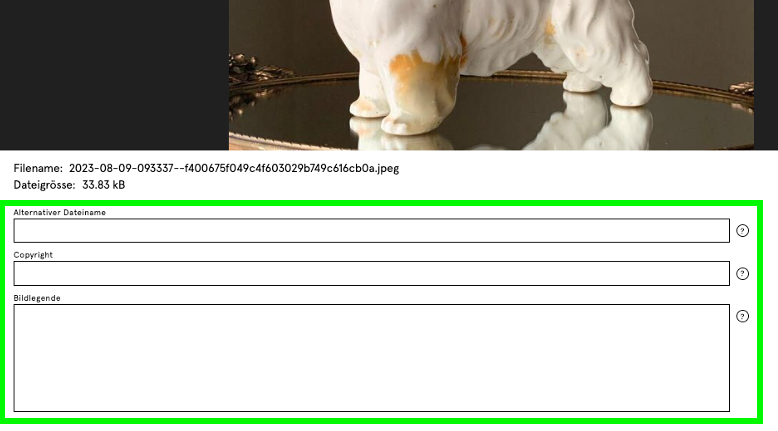
Adding an alternative file name, copyright and caption
When you click the image or file, the detail view opens. Here you can give the file an alternative name, add the copyright and insert a caption. If the file is made available for download, this alternative file name is shown.
➡️ How to make the copyright visible on your space: Detail view settings
Replacing an image or file
You can also replace images and files later, for example by downloading a document, editing it and uploading the latest version again. To do this, click the circle with the replace symbol at the bottom right.
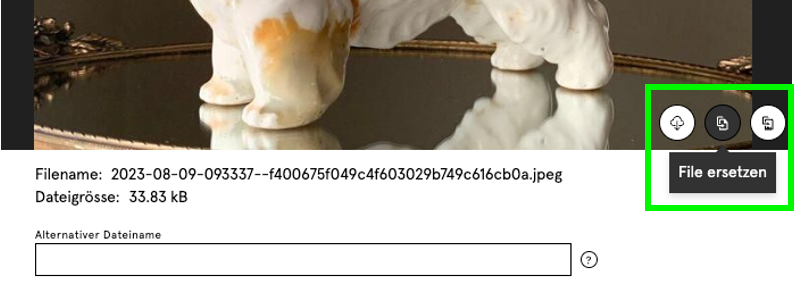
Downloading the original file
You can download your original images individually at any time. To do this, click the circle with the download symbol at the bottom right.
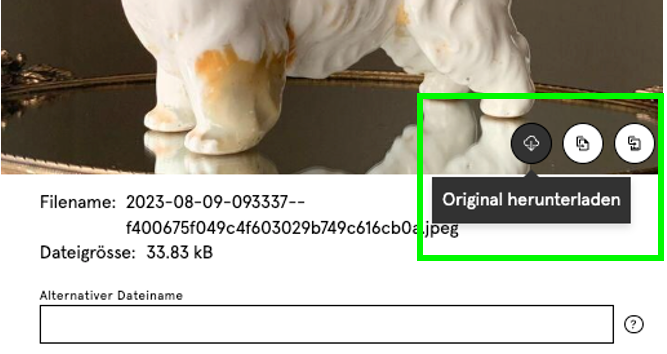
Choosing the preview image
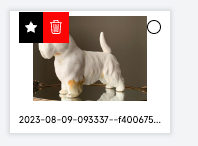
If you upload only one image, kleio automatically makes it the preview image. It is shown first on your website and in the overview of all records. You can recognise the cover image by the selected star symbol ⭐ at the top left of the image. If you upload several images, you can choose the cover image yourself by clicking the star.
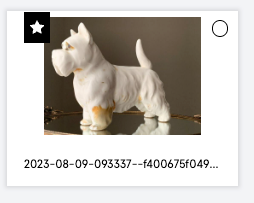
Moving images and files to another folder
After uploading, you can still drag and drop your files from one folder to another, e.g. from Gallery to Attachment.
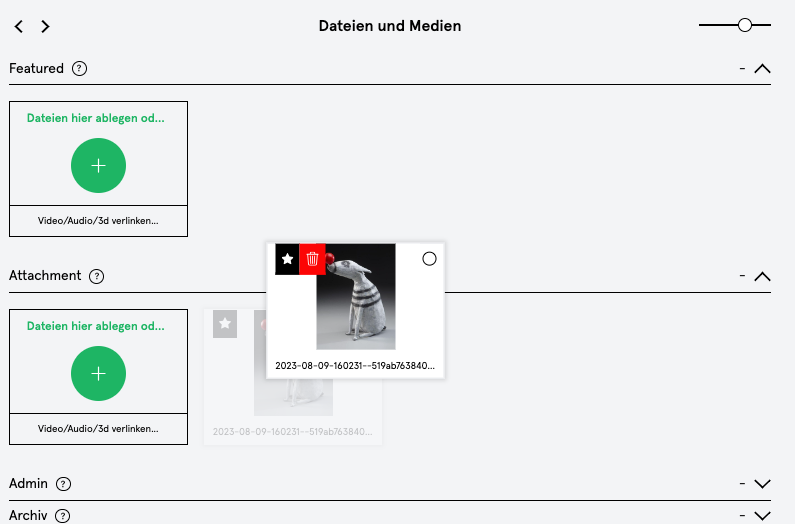
Deleting images and files
To delete a file, move your mouse over the image. A red field with a small bin appears. Click it to delete the image.
Best quality on kleio
You can also use kleio as a backup of your data. We recommend always importing the best version of an image.
Each file can be at most 2 GB, 178,000,000 pixels or 16,000 x 16,000 pixels.
All your uploaded images and files can be downloaded again at any time. For exports and publishing on the web, kleio calculates the required formats, profiles and image sizes itself and creates a JPG copy. The original images remain safely stored.