Sets, Smart Sets, Folders
What are the differences between Sets, Smart Sets & Folders?
Set
Records can be stored in several Sets at the same time, which makes Sets more flexible than a typical folder.
A Set is a collection of selected records / entries.
Smart Set
“intelligent Sets”
Smart Sets work like Sets, but they can sort works with given properties by themselves.
This means: I give the Smart Set a property such as Type = Work. Every time I create a new record with the property Type = Work, it is automatically added to the Smart Set. If it were a normal Set, I would have to add the new work manually.
Folder
A grouping of Sets and Smart Sets
Only found in the side panels. They can be collapsed to keep the panel tidy.
Set
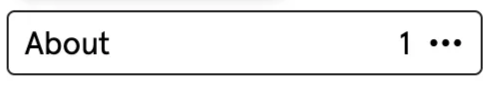
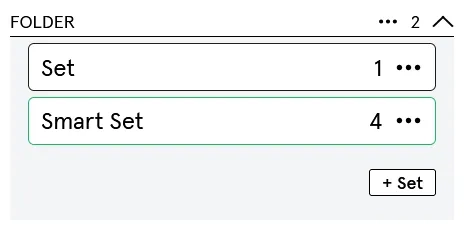
You can recognise a Set by its rounded black border. The number on the right of the Set shows how many records it contains.
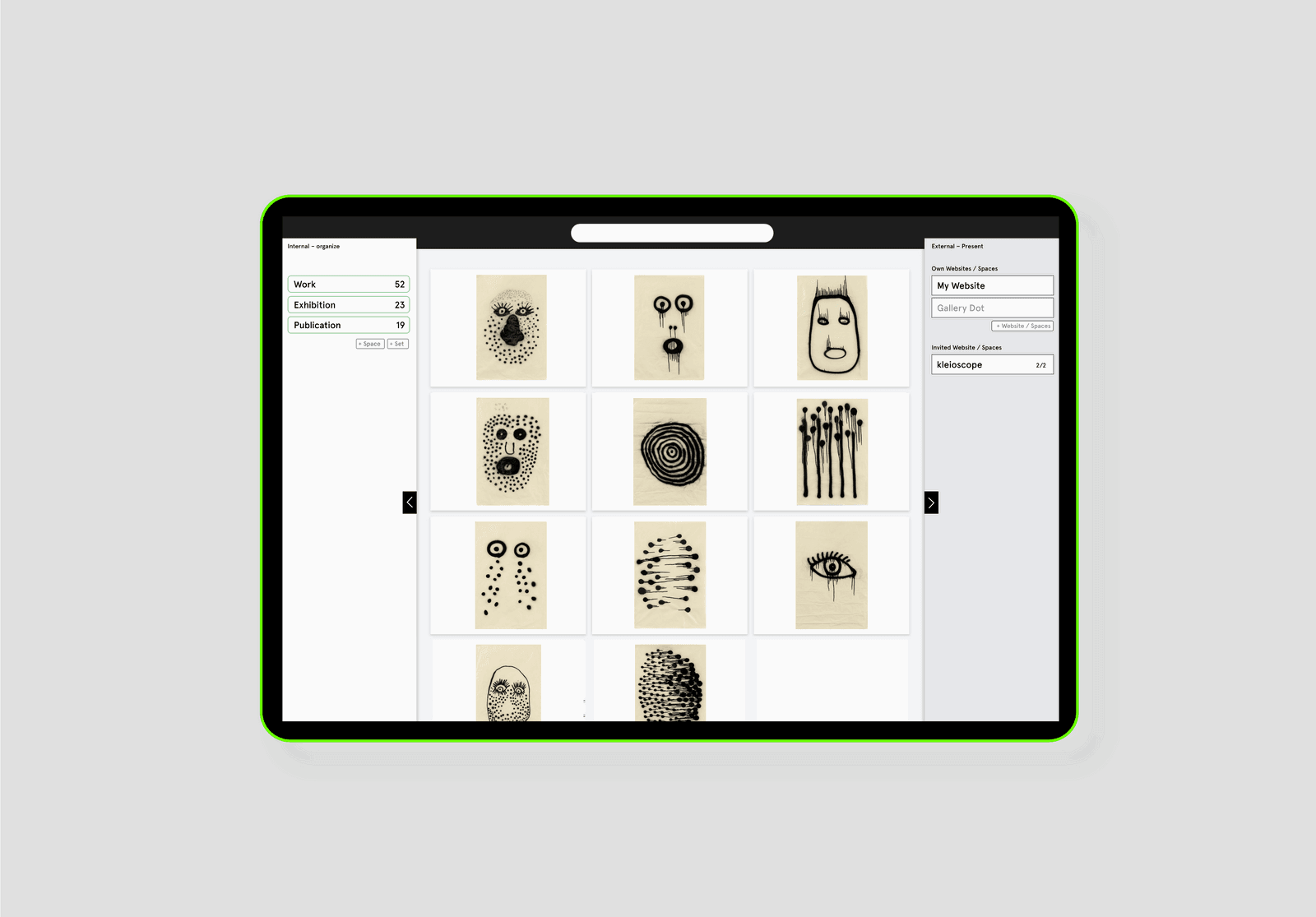
You can use Sets both on the left in your Internal - Organize panel and on the right in your spaces.
To publish records at all, they have to be placed in a Set.
Create a Set
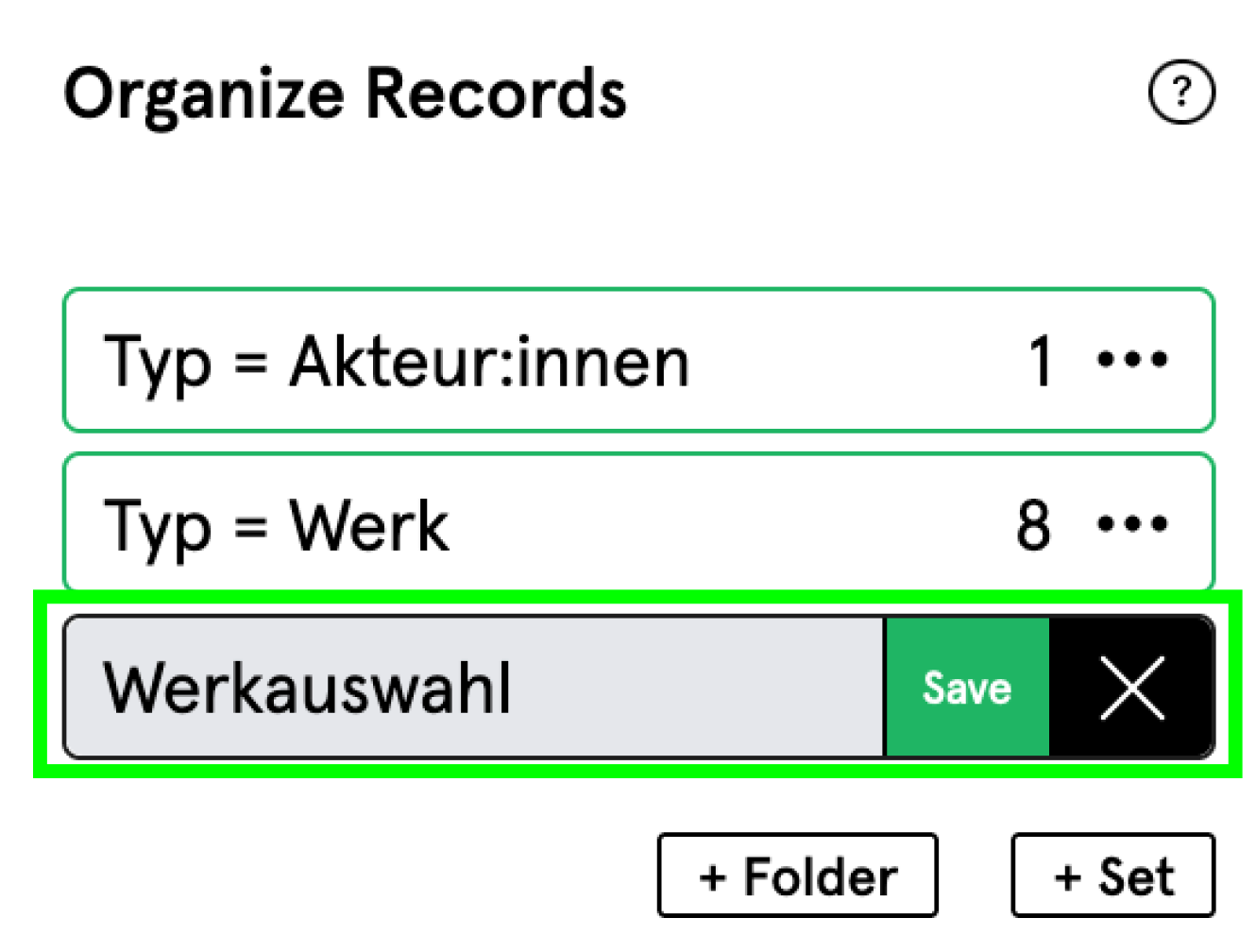
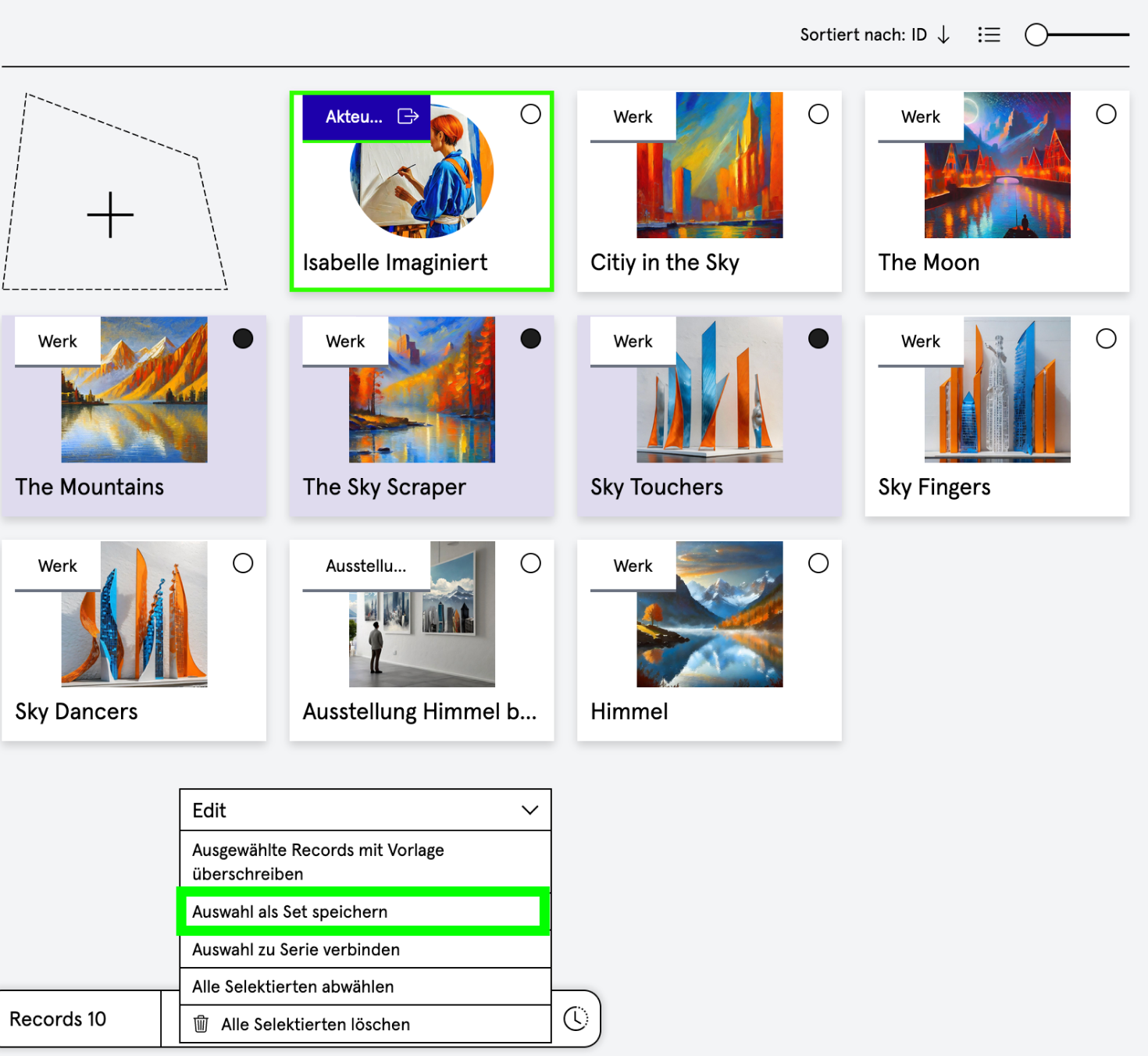
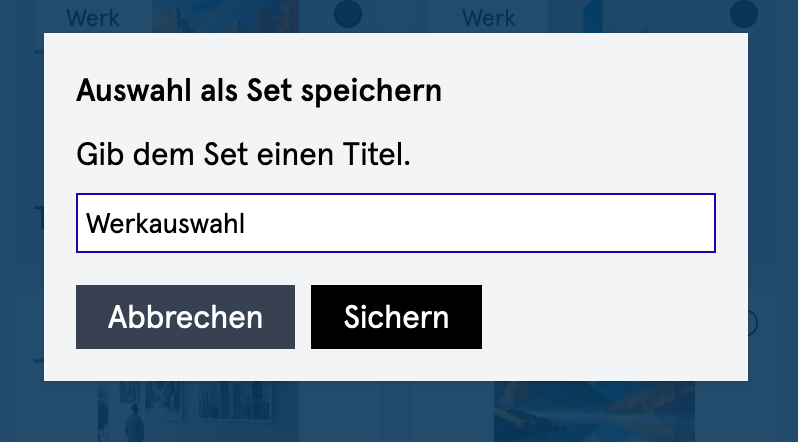
There are two ways to create a new Set.
+Set button.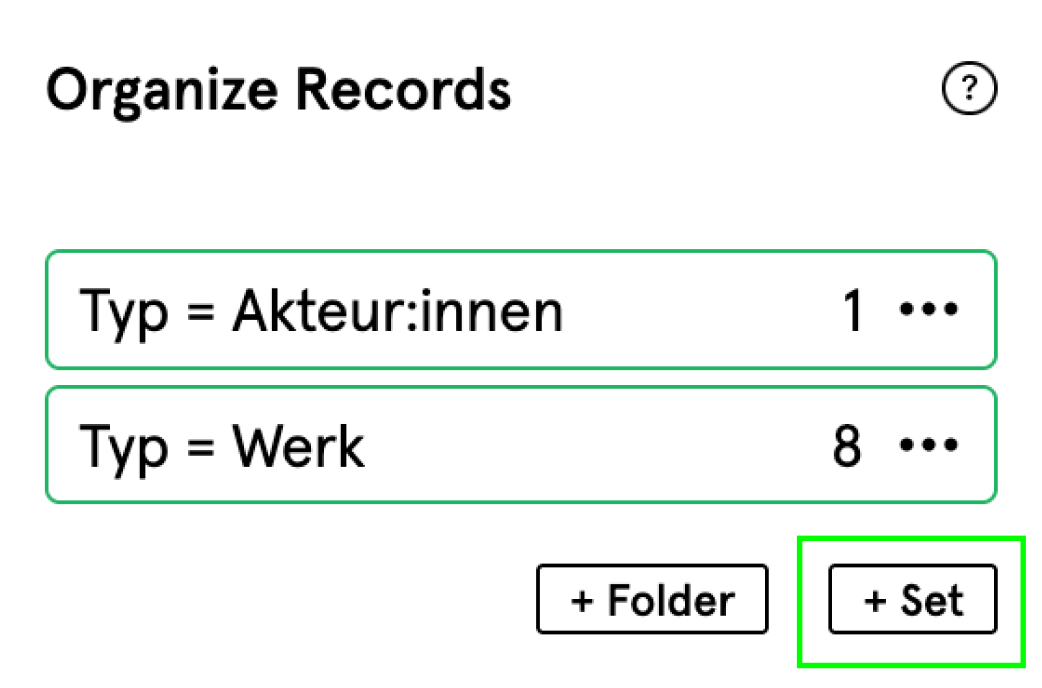
Manage Sets

The three dots on the right of the Set open the Set settings. The two symbols below then appear.
Delete Set

Rename Set

Change the order of Sets
You can arrange your Sets in the Internal - Organize panel however suits you best, simply by dragging them up and down.
Moving records in a Set
You can move records into Sets with drag and drop, either one at a time or by selecting several and moving them as a group.
Removing records from a Set
To remove a record from a Set, move your mouse over the record and click the red Remove. This removes the record from the Set.
The record itself is kept and not deleted; it is simply no longer in the Set.
Smart Set
Smart Sets can only be created in the left panel Organize. In the right panel Present you can only work with normal Sets.
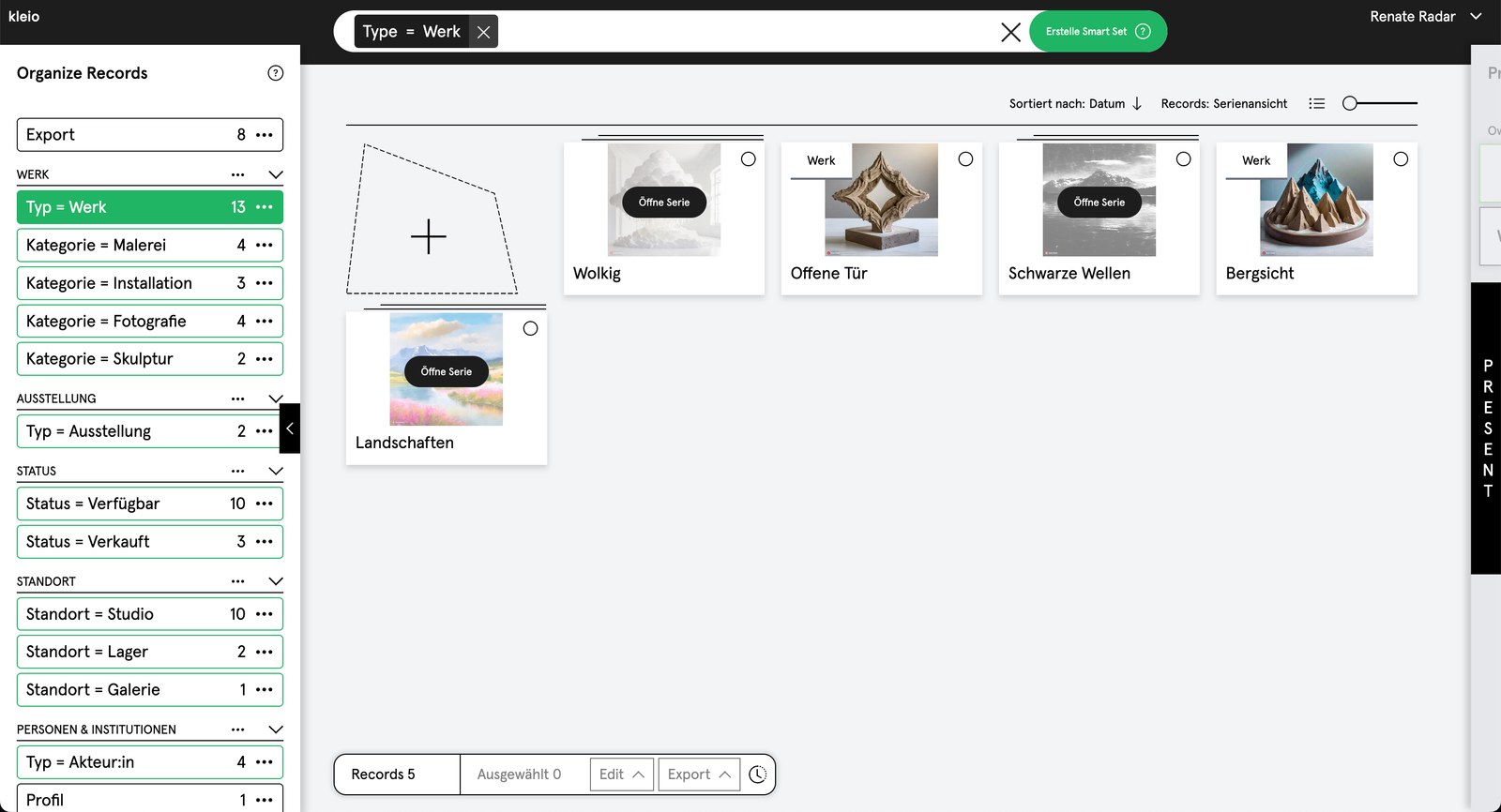
You can recognise a Smart Set by its green border. Smart Sets are also highlighted in green when you click them.
Create a Smart Set
First, define the properties your Smart Set should collect. Use the search bar for this.

When you click into the search bar, a selection of fields you can filter by appears automatically.
Filtering means showing only certain entries, namely those that meet certain conditions.
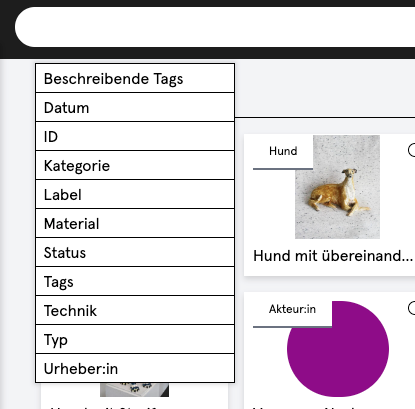
When you now choose a field (in this example Material), you can choose whether to search for a property or for all records without that specific property.
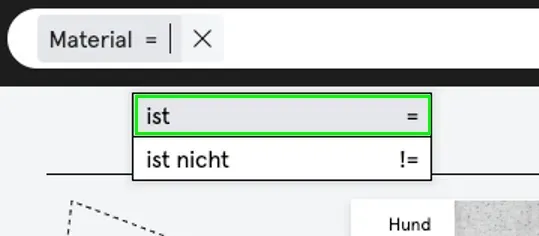
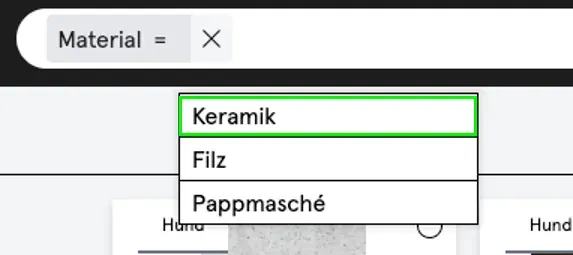
kleio then shows you which properties are assigned to this field. In this account there are works in ceramics, felt and papier-mâché, so kleio suggests those.
I choose ceramics.
kleio now shows all works with Material = Ceramics and offers the option to create a Smart Set on the right of the search bar.
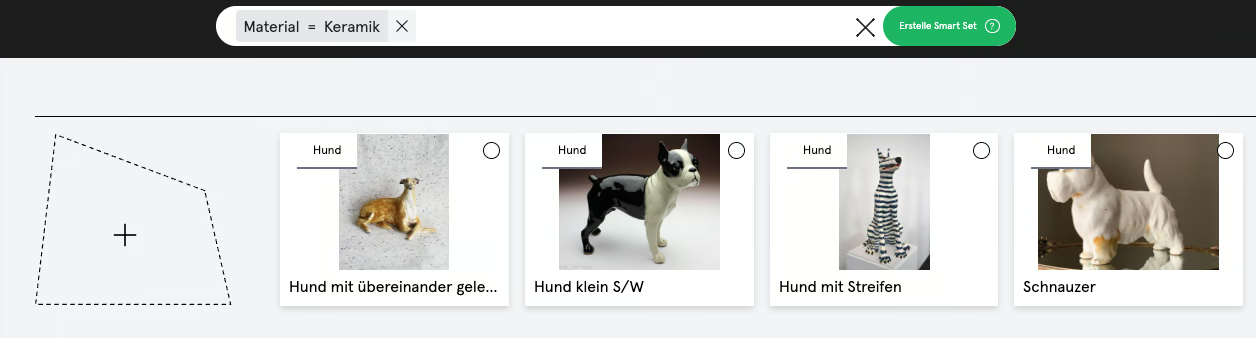
A new Smart Set with a green border then appears automatically in your left Internal - Organize panel, and you can give it a name.
Then click save.
Your new Smart Set is now created!
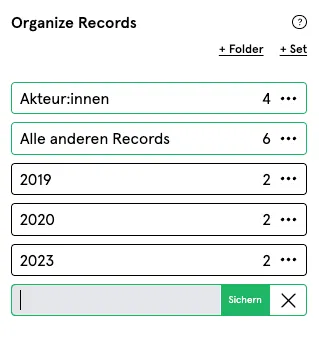
Manage Smart Sets
Renaming and deleting Smart Sets works the same way as for normal Sets.
The order of Sets can also be changed with drag & drop in the same way.
The difference is that you can't set your own order within the Set. You can change the sorting criteria, but not create a custom order. You also can't add works to a Smart Set manually, as the properties of this group are predefined.
Folder
Folders are containers in which Sets can be stored. You can't put individual records directly in a Folder, only in Sets.
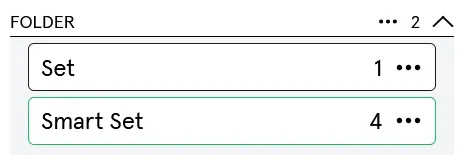
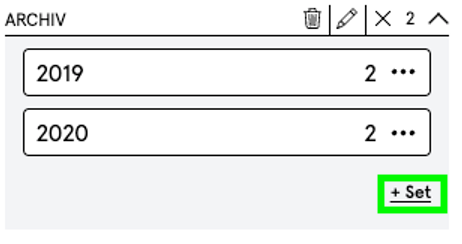
With the small arrow to the right of the Folder name you can expand and collapse the Folder. When it is collapsed, you only see the name. The number on the right shows how many Sets the Folder contains (2 in this example).
In your left panel Organize you can put Smart Sets and Sets in a Folder to refine your internal storage structure.
In your right panel Present you can put your Sets in Folders to shape the navigation of your spaces.
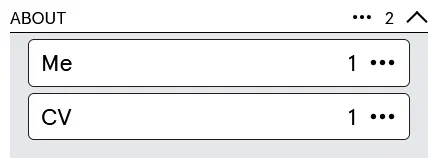
Create a Folder
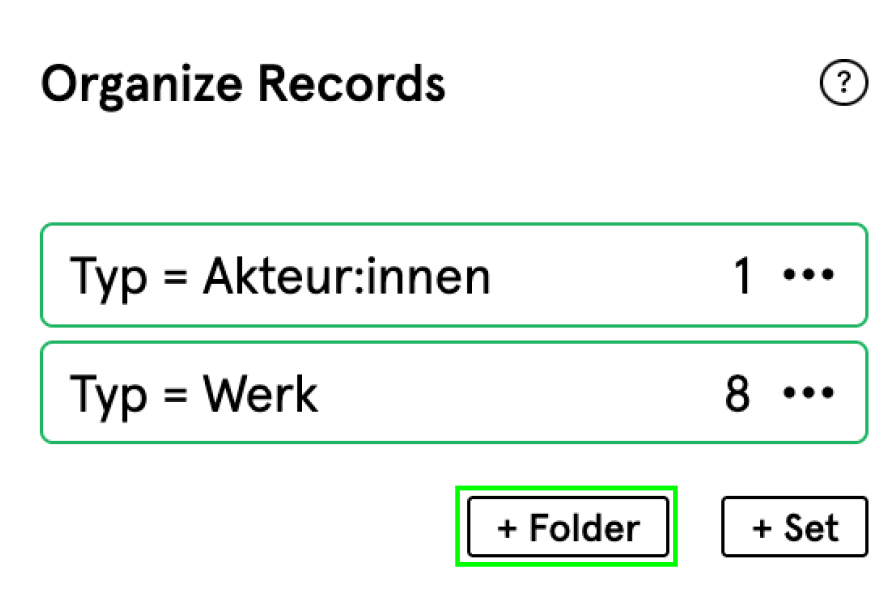
To create a Folder, click the +Folder button.
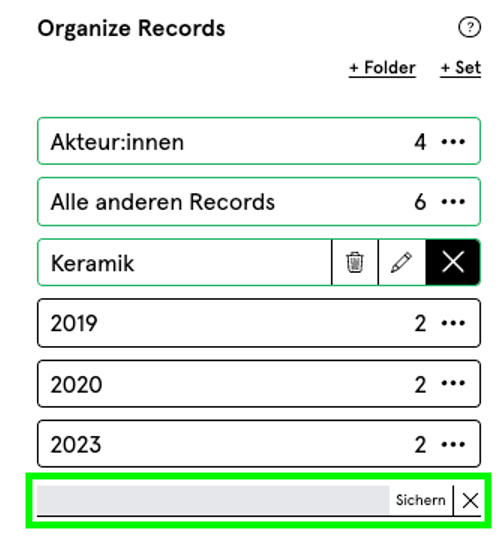
A new Folder then appears automatically below your existing Sets. Give it a name and click Save.
Manage Folders
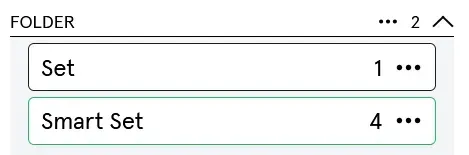
The three dots next to the number of Sets open the Folder settings
Rename Folder
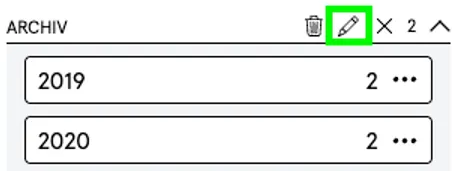
Click the pencil. Now you can change the Folder's name and save it.
Delete Folder
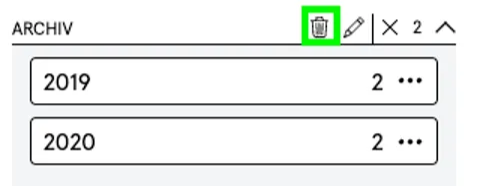
Caution: when you delete a Folder, all Sets in it are deleted too! The records are kept.
Click the small bin and confirm.
Moving a Set into a Folder
You can drag and drop Sets into Folders, or create a new Set directly in a Folder by clicking +Set at the bottom of the Folder.