Account settings
How to open your account settings:
- Click your account name in the top right corner of kleio
- Click
Account
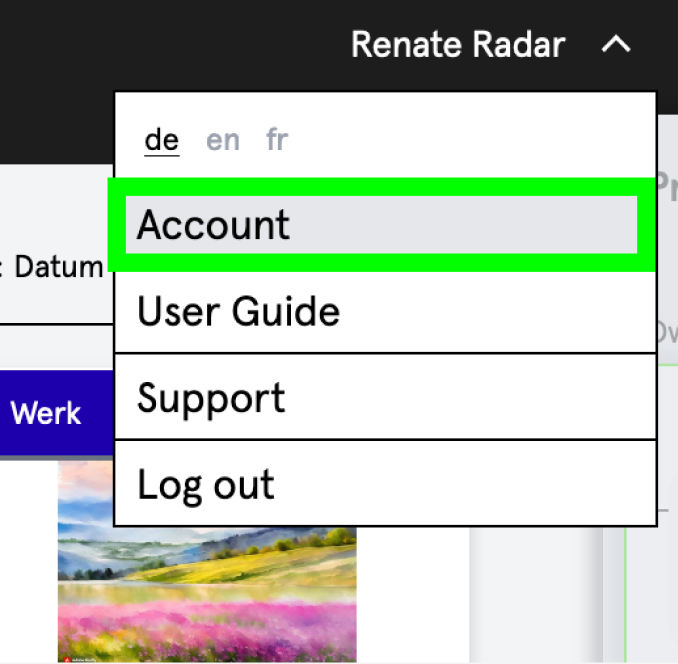
Here you will find the following features:
Manage subscription & payment
- Open your account settings.
- Go to the Account section.
- Click
Abo & Zahlung Verwalten(Manage subscription & payment)
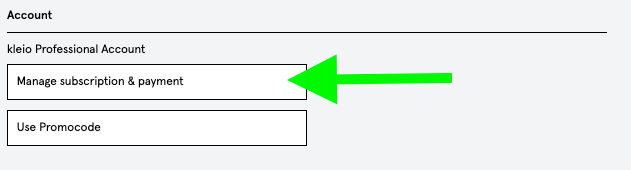
Add a payment method
To add a new payment method, click Zahlungsmethode hinzufügen (Add payment method):
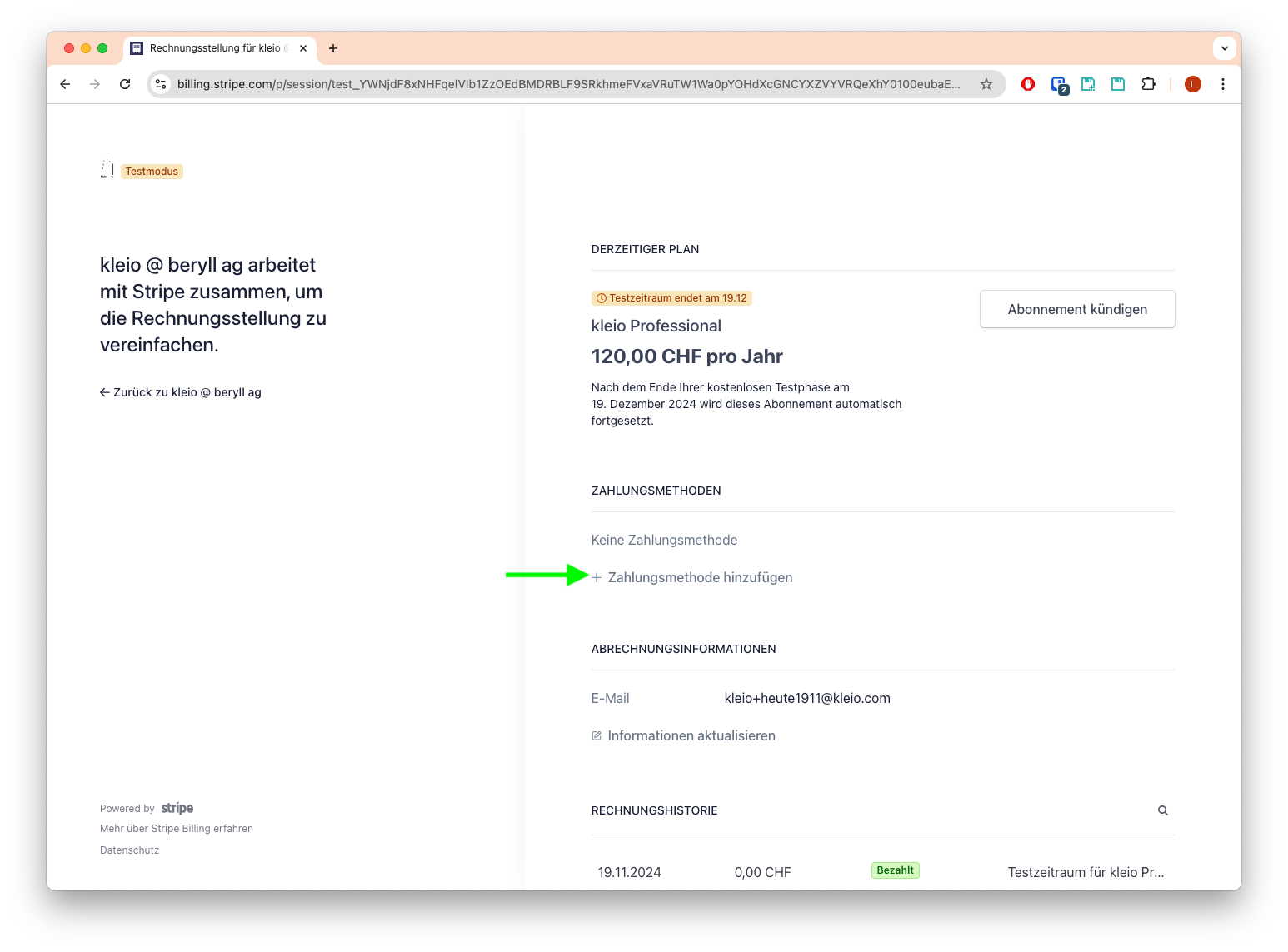
Now choose a payment method and fill in the fields. It will be charged automatically when payment is due. You will be notified by email before each charge.
Available payment methods:
- Debit and credit cards
- Paypal
- Apple Pay
- Google Pay
Note that depending on your browser, only Google Pay (Chrome) or Apple Pay (Safari) is shown.
You can change and replace your payment methods at any time.
Enter a promo code
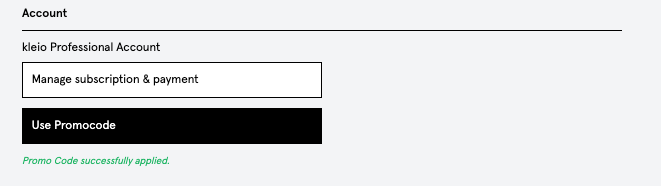
If you have received a promo code, you can enter it in your account settings.
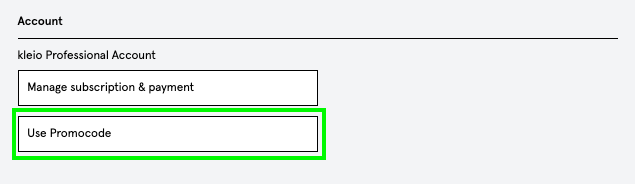
Once you have entered it, a notification confirms that it has been applied:
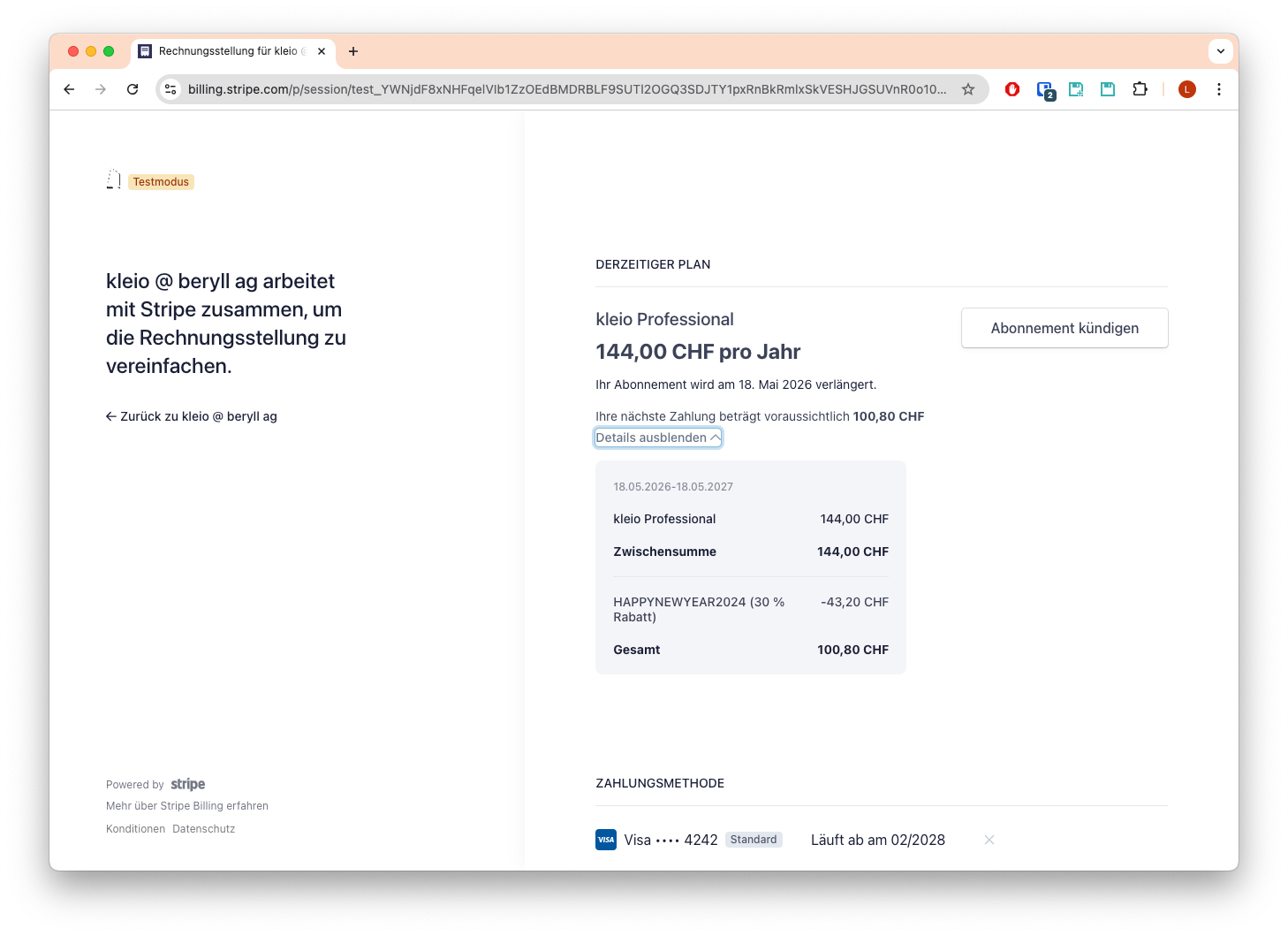
The discount is then also shown on your bill in your payment management.
View invoice history and print receipts
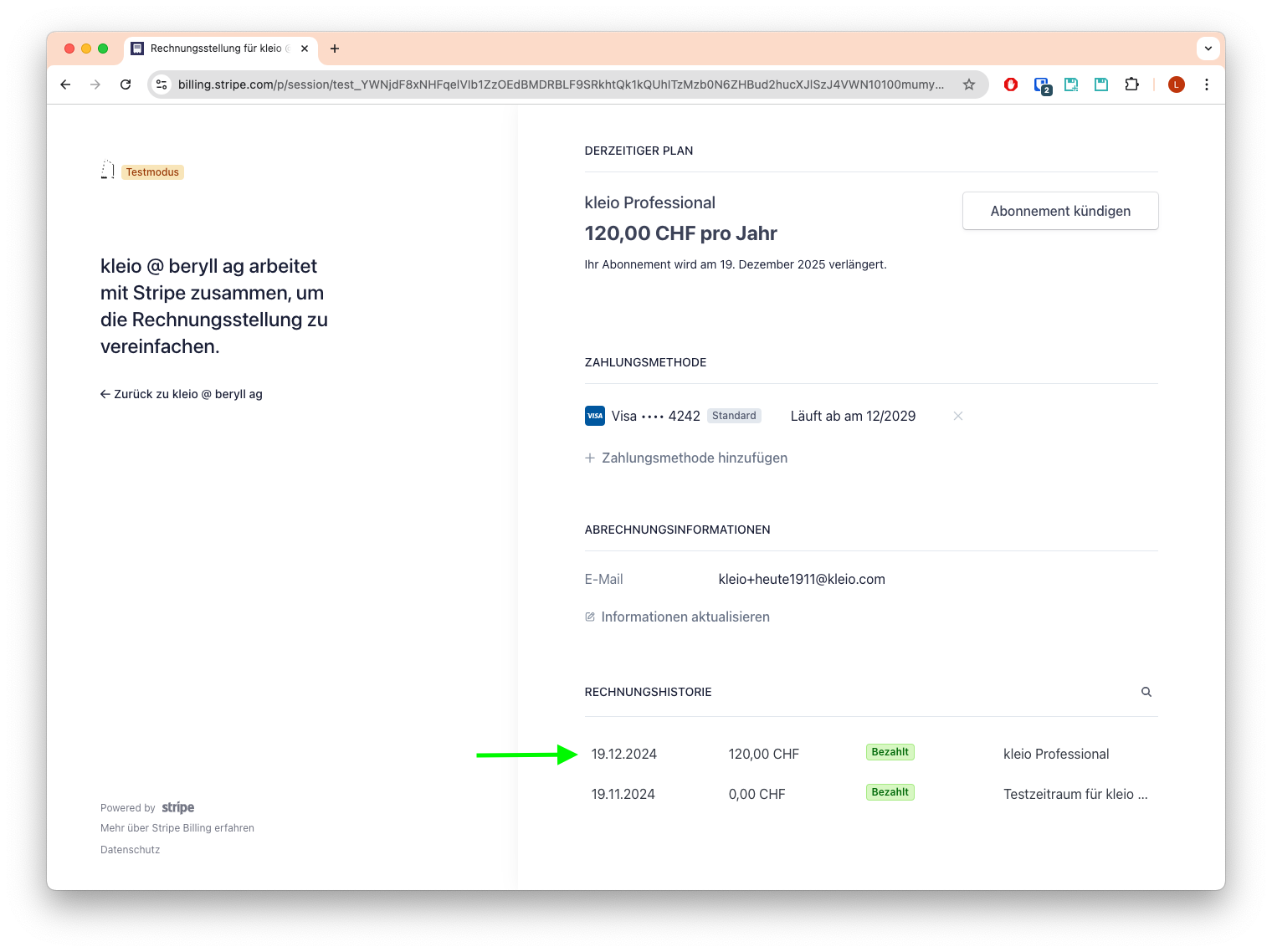
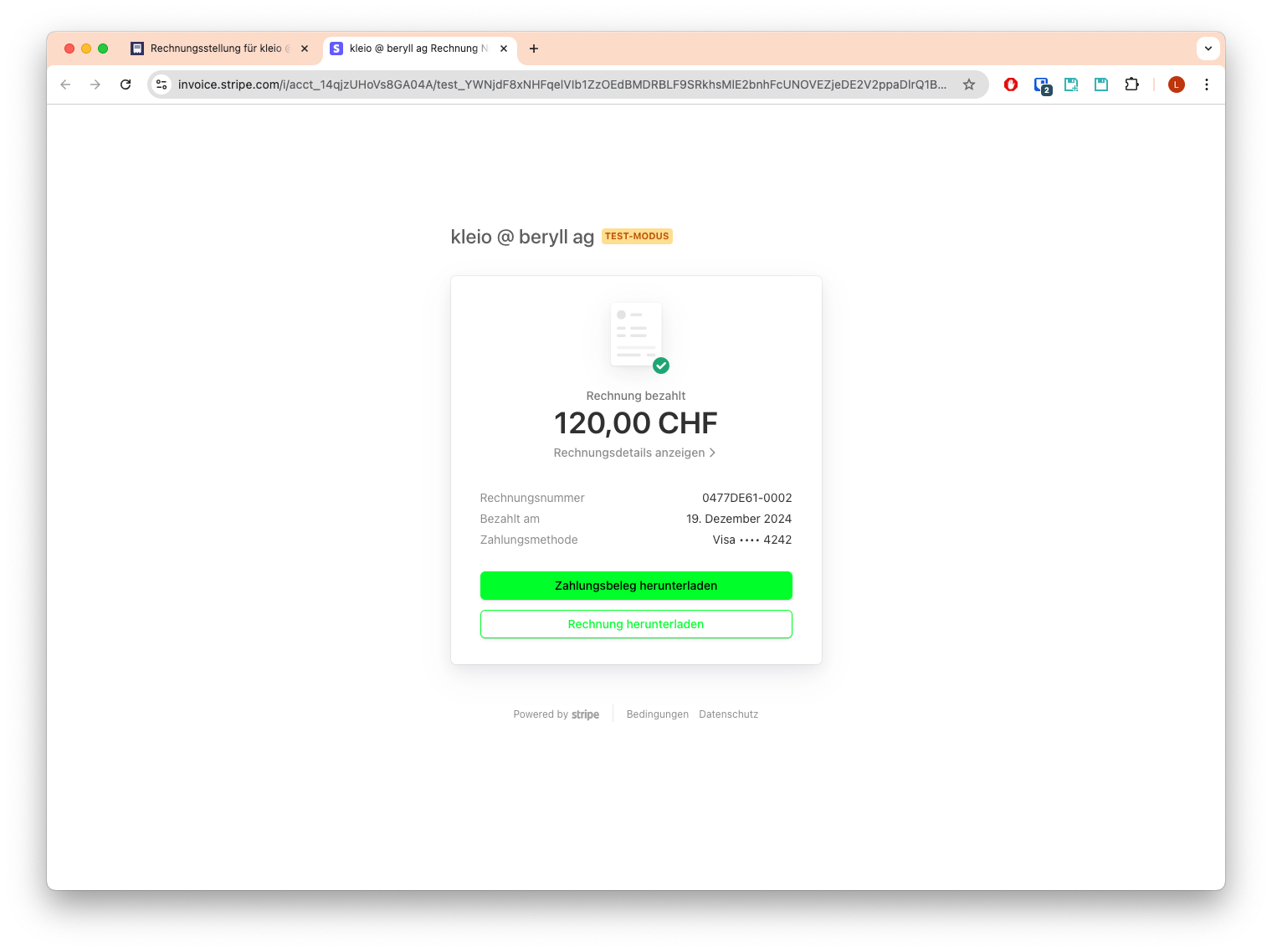
In your subscription and payment management you can view your invoice history and print your receipts at any time.
Cancel subscription
You can cancel your subscription at any time, effective from the next payment date. When you cancel, your content on kleio is frozen after the payment date and becomes accessible again as soon as you reactivate your subscription.
- Open your account settings and go to the Account section.
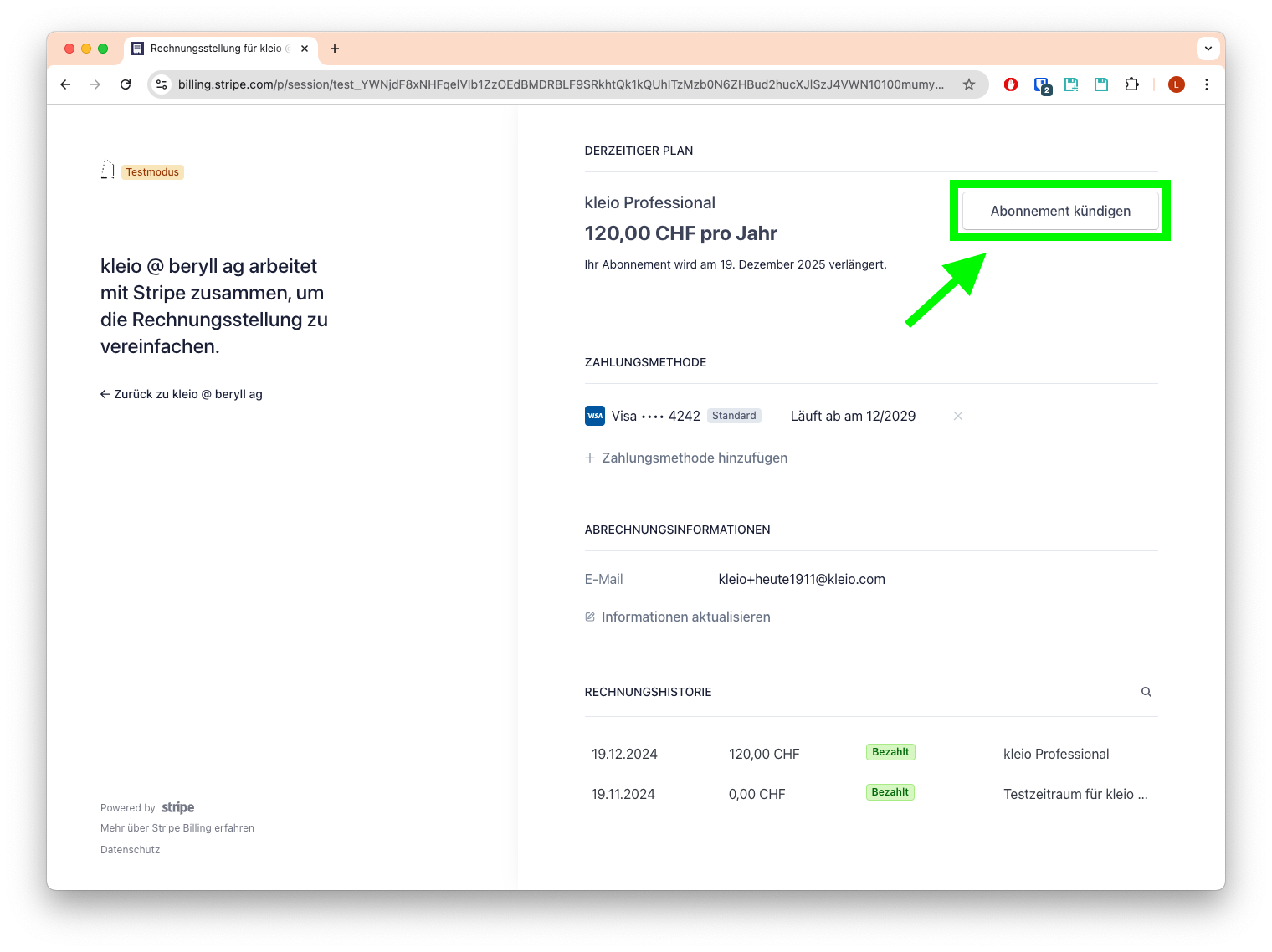
Reactivate subscription
If you have cancelled your subscription, or the payment date has passed without a payment, your account is frozen. You can tell by the banner in your kleio account:

Your account settings also show “Frozen” as your account status.

To reactivate your account, go to your account settings and click Account reaktivieren (Reactivate account).
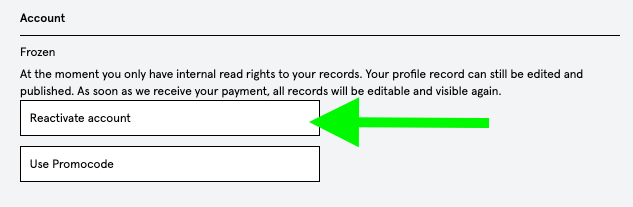
Then choose a payment method and make a payment.
Delete account
Scroll down to:

Here you can permanently delete your kleio account together with all stored data. When you click Account löschen (Delete account), a field appears where you confirm your decision by typing the word DELETE.
Deleting your account also automatically cancels your active subscription.
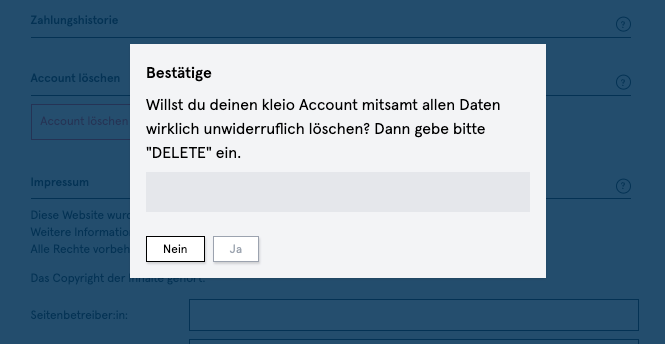
Manage details
Email address
Scroll down to:

Here you can change the email address of your account.
Password
Scroll down to:

Here you can change your password. When you click Passwort ändern (Change password), we send you an email with a link to change your password.
The password must be at least 8 characters long and contain a capital letter, a number or a special character.
If you have forgotten your password, you can also reset it in the log-in window by clicking Passwort vergessen? (Forgot password?).
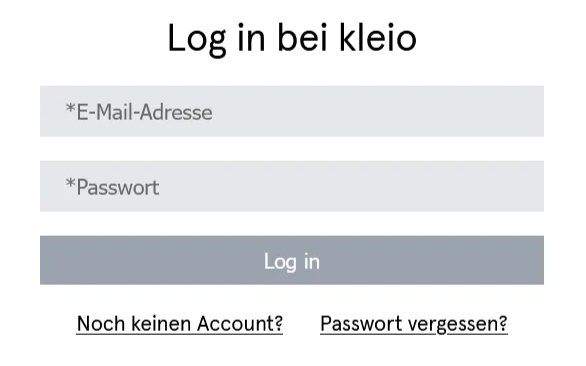
Legal notice
Scroll down to:
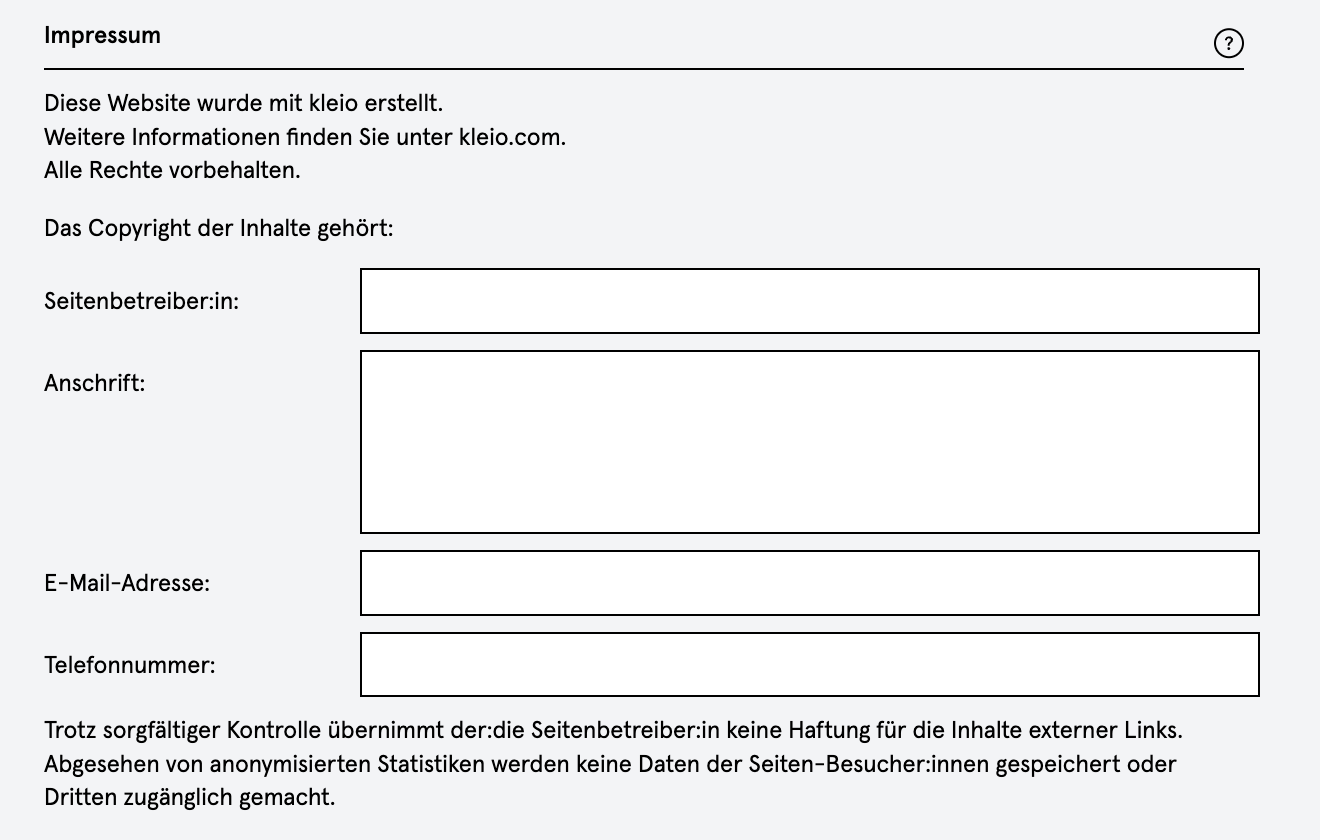
Here you can enter the legal notice (Impressum) for your website. As a legal notice is required by law in Europe, please fill it in.
Please fill in the following fields:
- Site operator: first and last name of the contact person
- Address: address of the person
- Email address: email address of the person. Tip: write the email address with a disguised @, for example yourname(at)mail.com. This makes your address harder to find and you get less spam.
- Phone number: phone number of the person
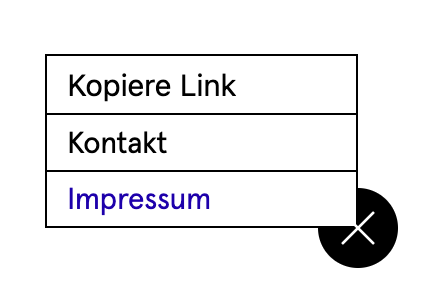
kleio adds the remaining information automatically. On your space, you will find the legal notice behind the paper plane button at the bottom left.

Change account name
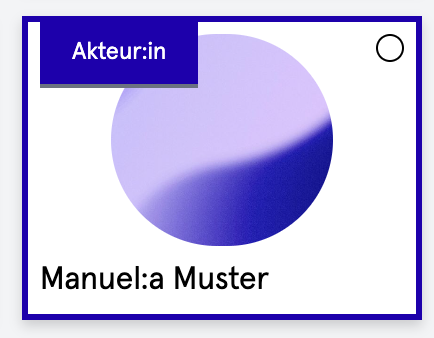
You can't change your account name in the account settings, but in your profile record. To find it, click Type = Akteurin (actor) in the left panel Organize Records. The record with the green frame is your profile record. Click the record to edit it and enter the account name you want in the Label field.
Public kleio domain
Scroll down to:

Every kleio account automatically gets its own kleio domain, based on your account name (firstname-lastname.kleio.com or alternativename.kleio.com). So your domain looks like www.YOURNAME.kleio.com. This becomes the website domain of your Main Space.
You can change your kleio domain by clicking the small pencil to the right of your domain. The domain may contain letters, numbers and single hyphens, but no umlauts.
Please note that you only need to enter the part of the URL highlighted in yellow here: www.YOURNAME.kleio.com. You don't need to enter www. or .kleio.com – we add those automatically.
❗You can change this URL at any time. Change it with care, though: after a change, search engines take a while before they show your pages again. The kleio domain is secured with a certificate so that it passes browser security checks and is easier to find (indexed).
Discoverable user
Scroll down to:

If you make yourself discoverable (by ticking the checkbox), other kleio users can find you and invite you to collaborations. Other users can then see that you have a kleio account and view your published space, if you have one.
Languages and currencies
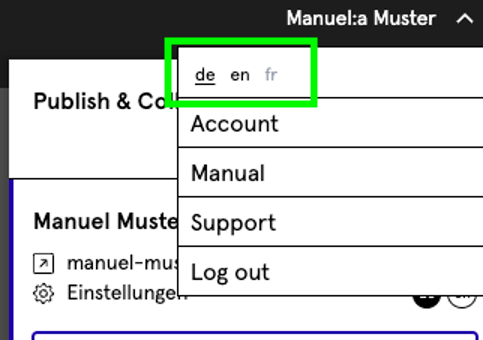
You can use kleio in three languages: German, English and French.
Scroll down to:
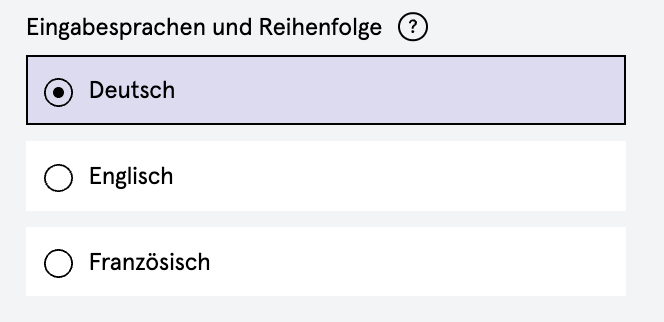
This choice only applies to your own use of kleio and doesn't change the language in which visitors see your website.
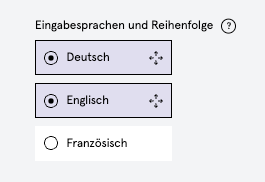
In your account settings you can choose the languages in which you want to publish your content and the order in which the language switches appear.
Select the languages you want to use, then change their order with drag and drop.
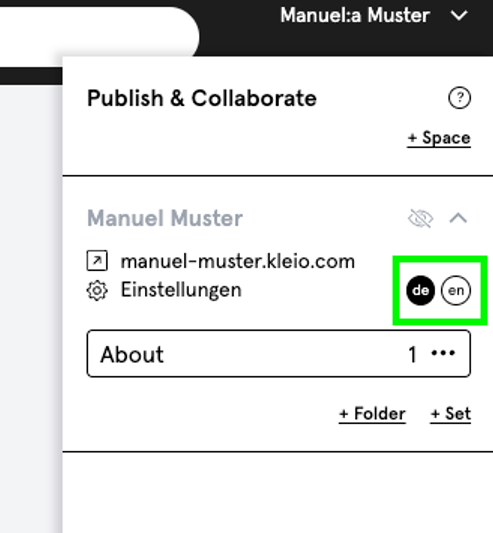
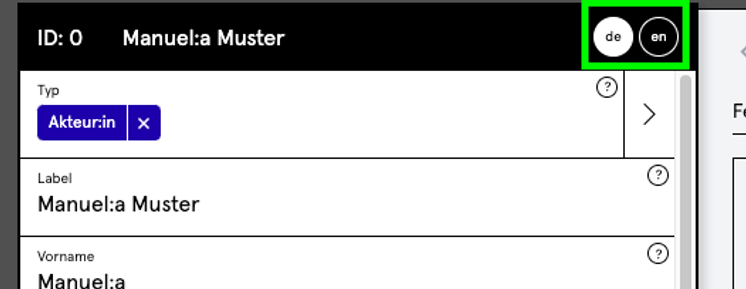
For example, if you choose German and English in the order German > English, the language switches appear in that order in your right panel Present & Collaborate and in the detail view of your records.
This is what the selection German (1st priority), English (2nd priority) looks like:
This is how the selection German (1st priority), English (2nd priority) is shown in your right panel:
This is how the selection German (1st priority), English (2nd priority) is shown in the detail view of your records:
Correspondence language
Scroll down to:
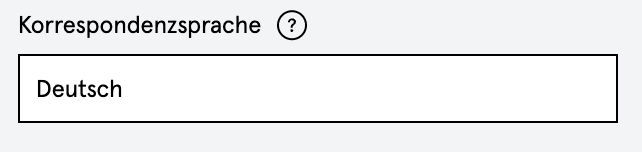
Here you can choose the language in which you want to receive information from kleio.
Default unit of measurement
Scroll down to:
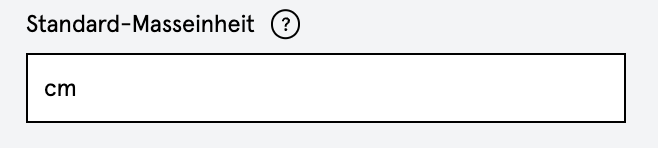
Here you can choose which unit of measurement (cm or inch) is used by default for your entries in records. It is then set as the default, but you can still change it for each record.
Default currency
Scroll down to:
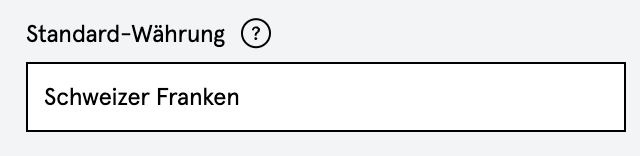
Here you can choose which currency is used by default for your entries in records. Either pick one from the drop-down menu or type a currency into the field. It is then set as the default, but you can still change it for each record.